

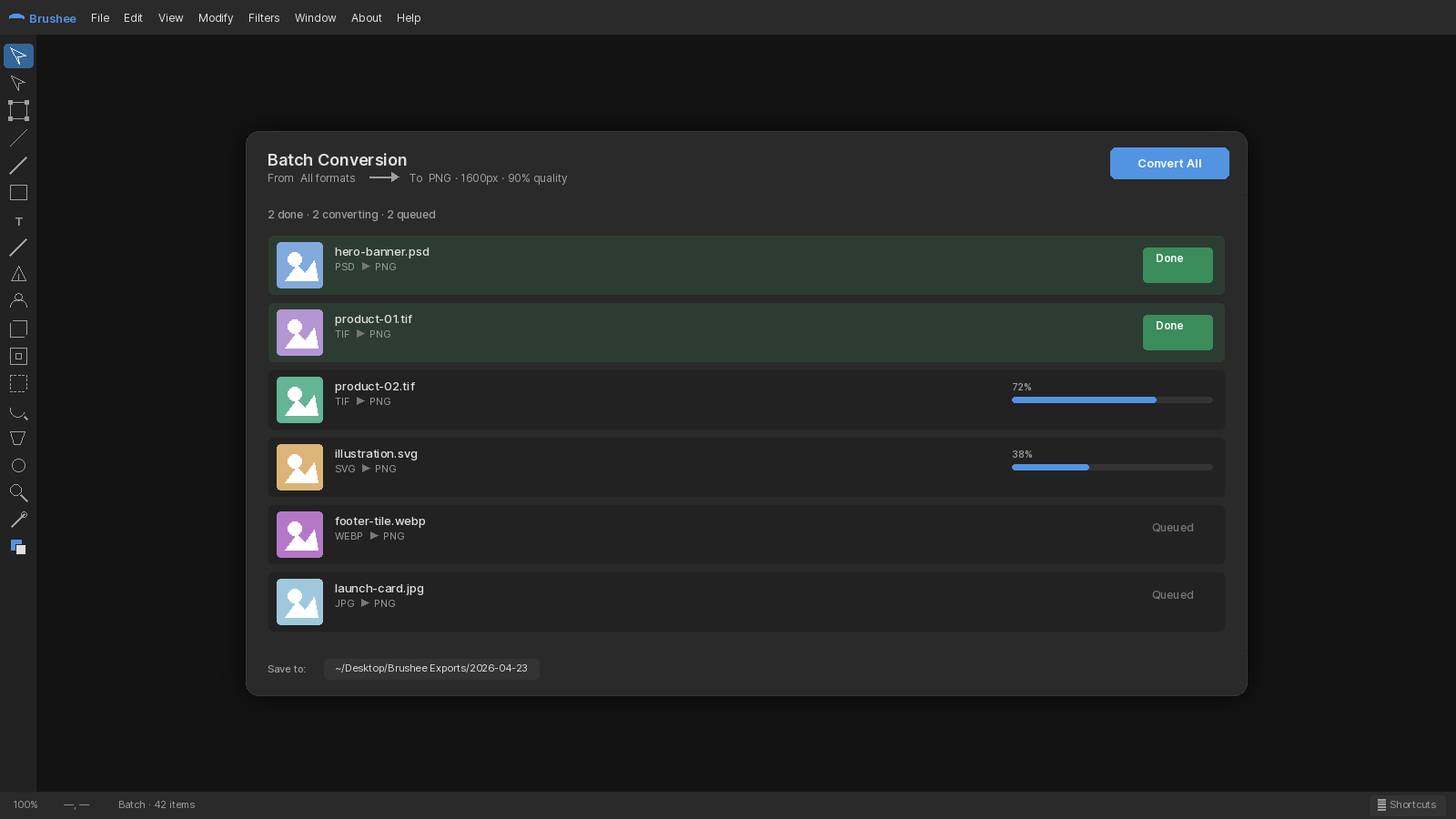
Batch Convert (File → Batch Convert…) takes a queue of image files, pushes each through an ordered pipeline of operations, and writes the results to a ZIP or a directory. Everything runs in your browser — the files never leave your machine.
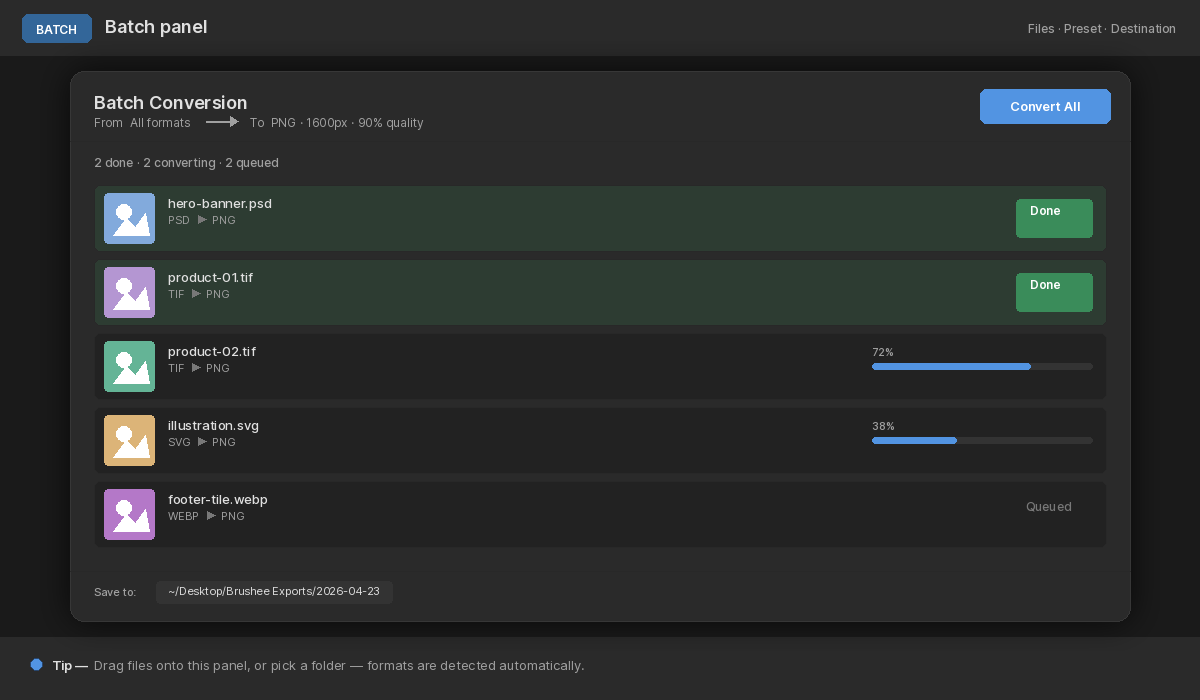
The dialog has three columns: the queue on the left, the operations pipeline in the middle, and export settings on the right.
The queue
- Add Files opens the system file picker — or drop images directly onto the queue.
- A↓ / Z↓ sort the queue alphabetically with natural ordering, so
img_2.pnglands beforeimg_10.png. - Each row has up/down arrows to reorder, a ✕ to remove, and an editable filename so you can rename on the fly.
Operations
Operations run top-to-bottom on every queued file. Add one with the dropdown and Add button. Each row has an enable checkbox, reorder arrows, and a ✕ to remove.
Available operations:
- Transform — Resize (scale %, fit width, fit height, exact size with aspect lock), Crop (center, aspect ratio, or inset %), Rotate (90° CW/CCW, 180°, flip H/V).
- Color — Brightness/Contrast, Hue/Saturation, Invert, Sepia.
- Filter — Blur, Sharpen, Chroma Key (pick a key color), Magic Wand Key (sample a pixel at an X/Y percentage and chroma-key from it).
Only the parameters relevant to the current mode render — picking Scale % for Resize hides the width/height fields, while Exact size exposes them all.
Export
- Format — PNG, JPEG, or WebP. Quality slider only appears for JPEG and WebP.
- Rename — template with tokens:
{filename},{prefix},{suffix},{index},{ext},{format}. - Prefix / Suffix — substituted into the rename template.
- Index start / Pad — starting number for
{index}and zero-padding width (Pad 3 gives001,002, …). - Write as — ZIP file (save picker when the browser supports it, plain download otherwise) or Folder via the File System API.
Saved processes
The Process dropdown at the top holds reusable pipelines. Save updates the current process, Save As… prompts for a new name, and Delete removes the active one. Switching between saved processes updates the ops list and export fields in place — the dialog doesn't rebuild, so it's fast to hop between recipes.
Running
Run enables once there's at least one file in the queue. A progress bar tracks completion; errors on individual files don't stop the run — they're reported at the end, so an unreadable PNG in file #40 doesn't sink your batch.