

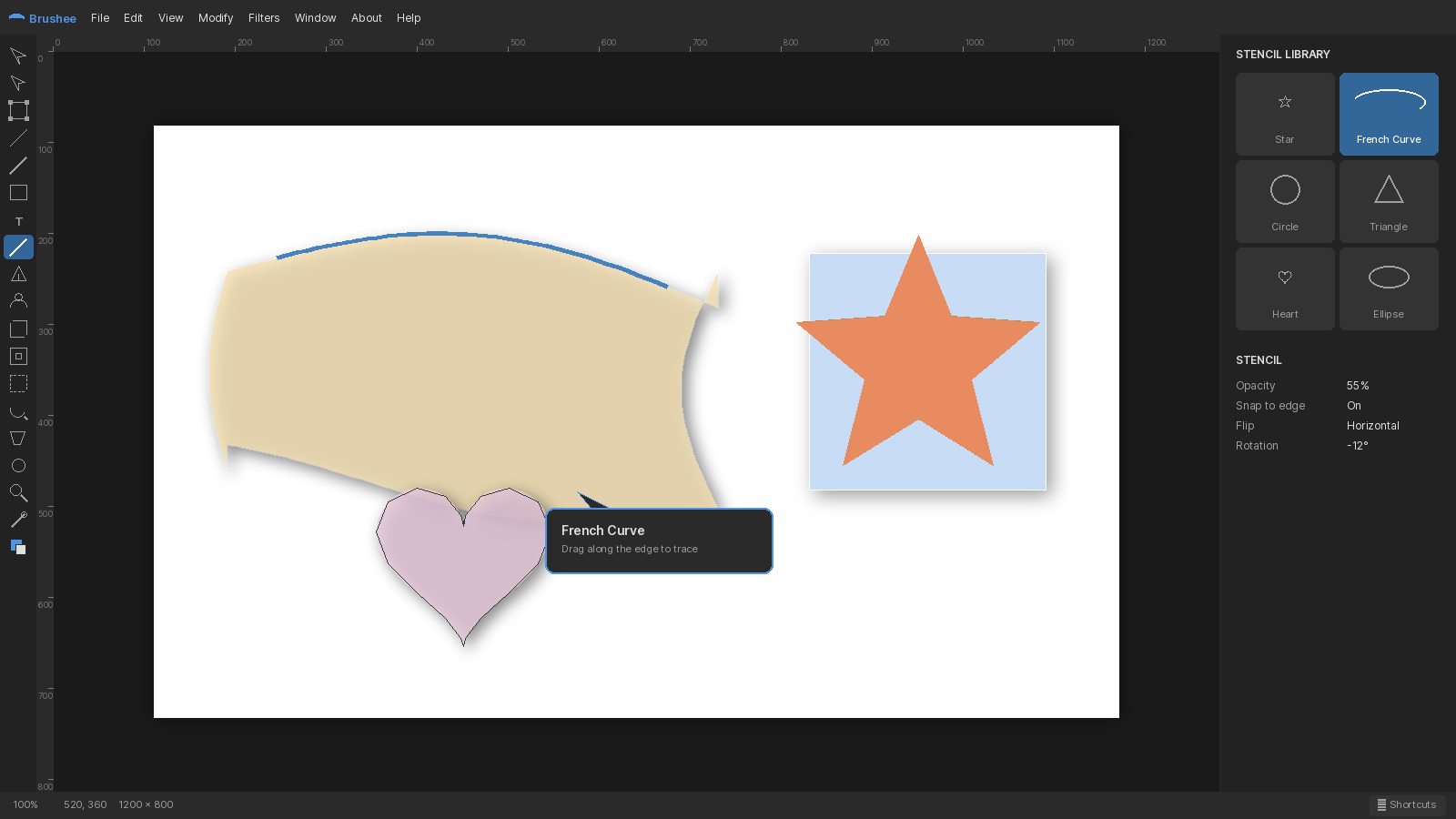
Stencils are drawing aids that constrain where paint and eraser strokes land on a bitmap. Think masking tape for digital ink: you lay a shape down, paint freely, and the stencil decides what reaches the canvas.
Press K for the stencil tool. Stencils live on a dedicated Stencils layer pinned to the top of the stack. They're not included in exported images, so you can leave them in place as reusable guides.
Hole vs. Block
- Hole — paint only reaches pixels inside the stencil's shape. The rest of the canvas is masked. Use this to confine strokes to a defined region.
- Block — paint is blocked wherever the stencil covers. Strokes flow around it. Use this to protect an area.
If multiple stencils are visible on the Stencils layer, their effect is additive — paint respects every visible hole and block at once.
Example: coloring in a star
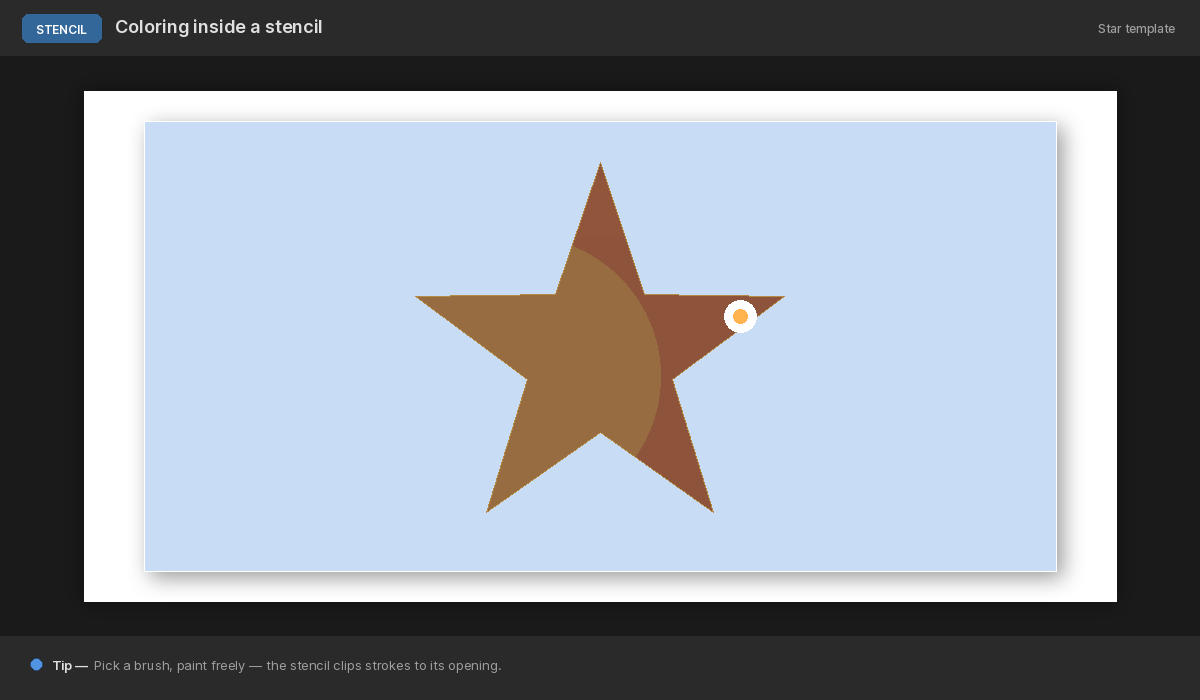
Draw a star stencil from the stencil flyout, pick a paint style, and scribble over the top. Paint lands only inside the star — go wild with brushstrokes because the edge is defined for you.
Example: French curve block
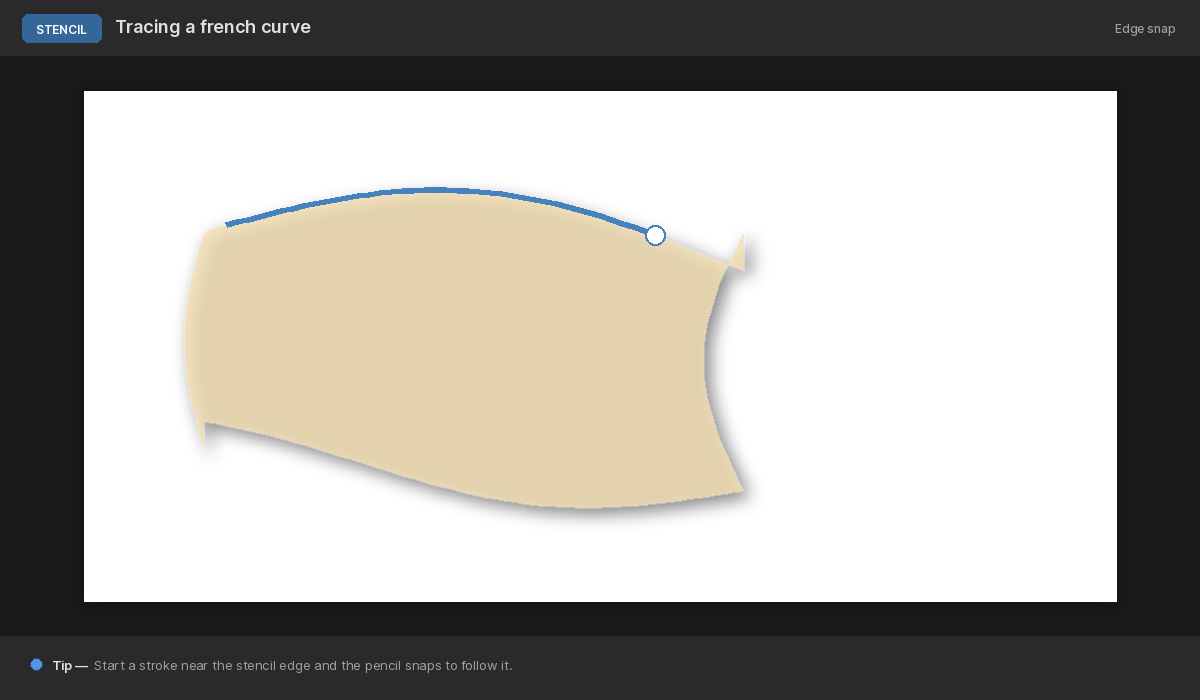
The French Curve stencil is a drafting-style swoop you can use as a block stencil. Drop it along the edge of a form and paint a straight line across it — the stencil carves a graceful curve into your stroke.
Reversing a stencil
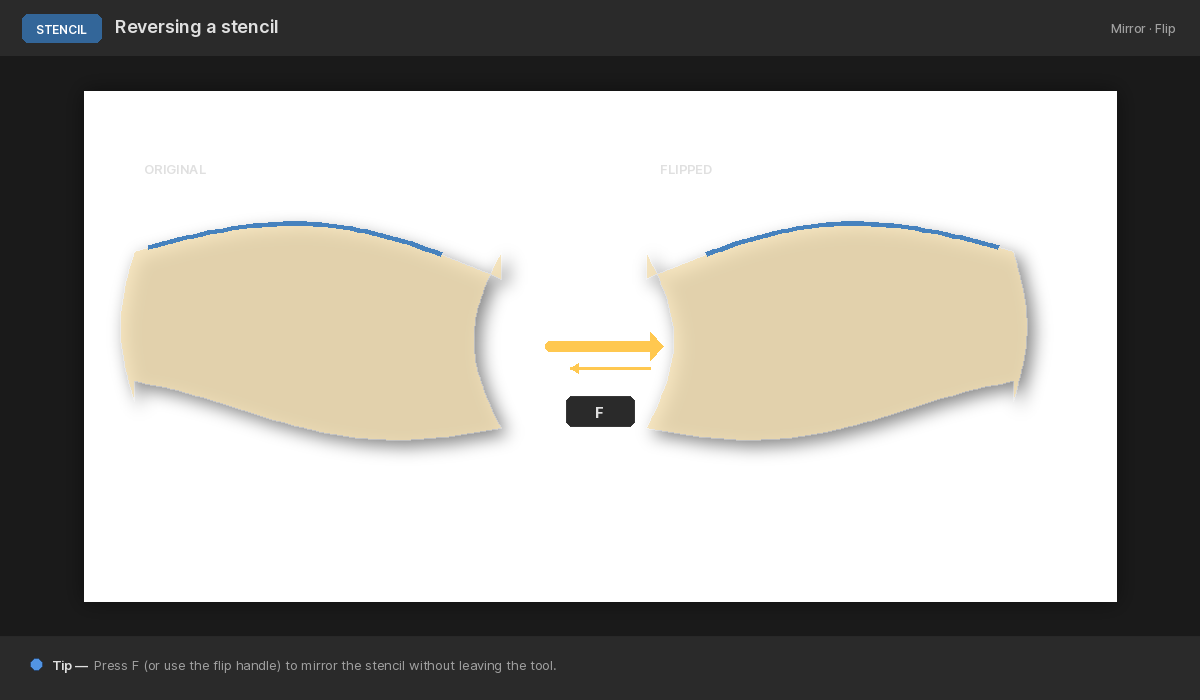
Select any stencil on the canvas and flip its mode in the Properties panel to turn a hole into a block or vice versa. Flipping stencils lets you reuse the same shape for both masking and protecting without redrawing it.
Stencil shapes
The tool's flyout offers:
- Rectangle / Ellipse — also available as Block variants.
- Star — 5-pointed star hole.
- Crescent — moon-shape hole carved with even-odd fill.
- French Curve — drafting-style swoop, used as a block.
Stencil outlines render as a light fill + dashed border so they stay visible against any background. Blue means Hole, red means Block — tell them apart at a glance.