

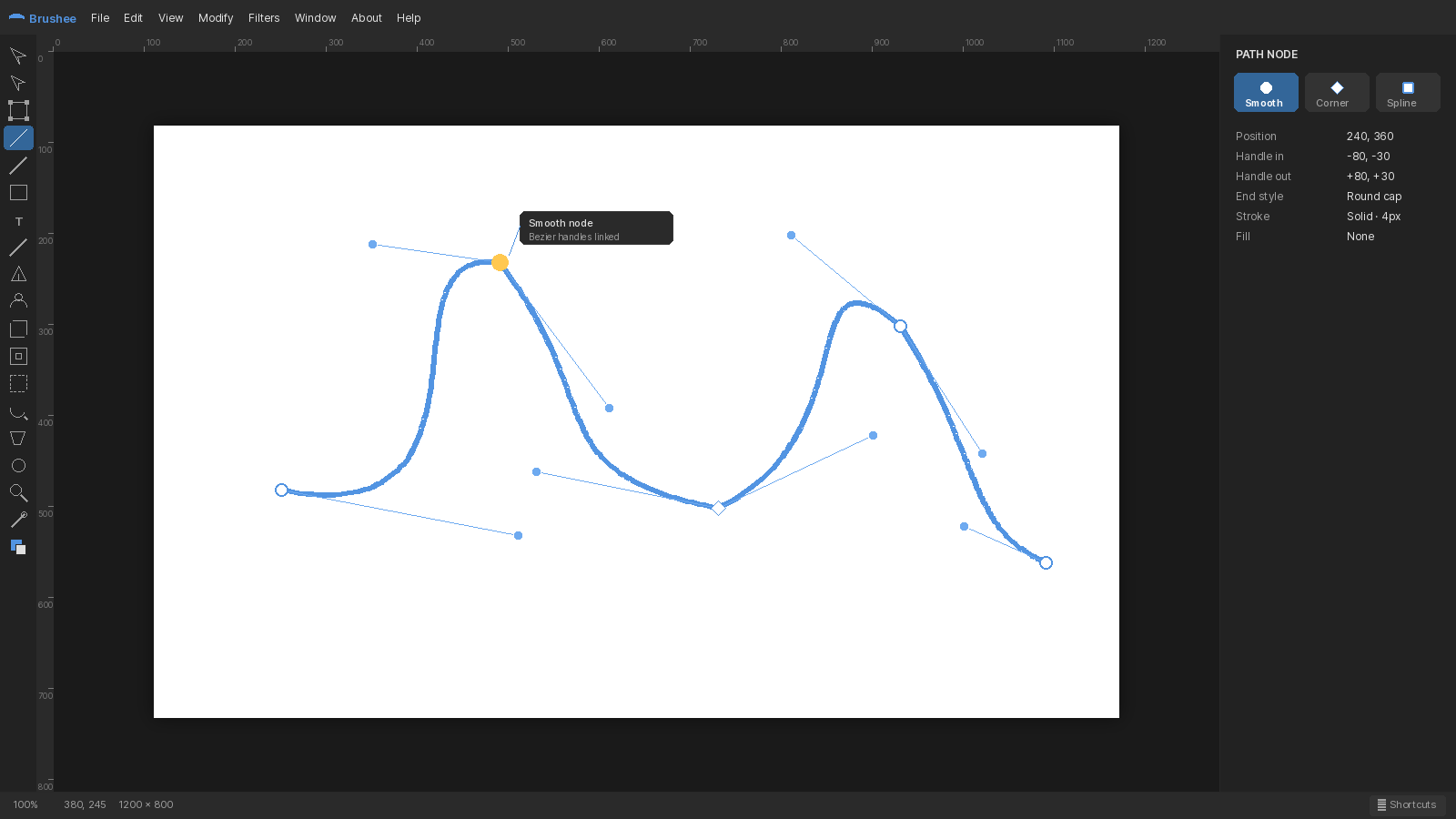
Once a shape becomes a bezier path — either by drawing one with the Pen (P) or by converting a smart shape — you edit it node-by-node with the Subselect tool.
Selecting nodes
Select a path with the Pointer, then press A to activate Subselect (or just double-click the path). The nodes and their handles appear. Click a node to select it; drag it to move it; drag a bezier handle to reshape the segment.
Node types
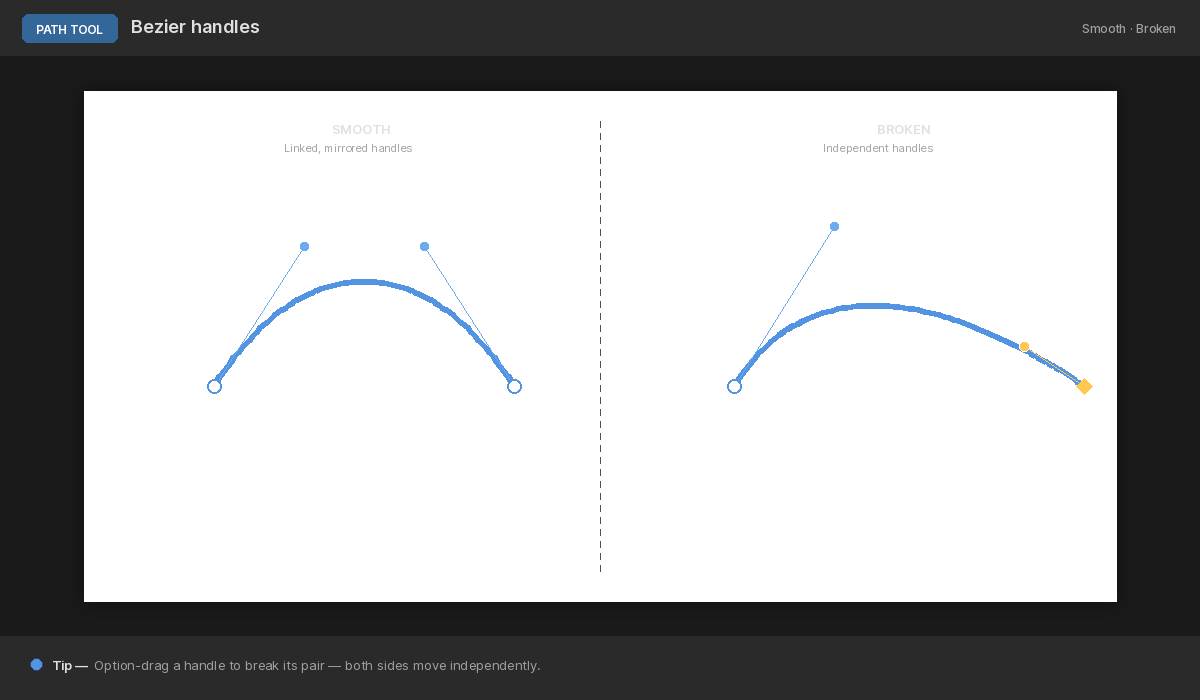
Right-click a selected node and pick Node Type to change how it behaves. Brushee supports six:
- Corner — no handles, sharp angle.
- Bezier (Smooth) — mirrored handles; the tangent is continuous.
- Split Bezier — independent incoming and outgoing handles, so you can make a sharp direction change while keeping the curve on both sides.
- Bezier Left / Right — handle on one side only.
- Spline (Hermite) — curvature derived from the neighboring nodes, no handles to drag.
- Arc — circular arc with a radius.
A segment curves whenever either the outgoing handle of the previous node or the incoming handle of the current node is present. That means a corner adjacent to a bezier still follows the bezier's tangent — handy for a crisp point that flows out of a curve.
Corner nodes
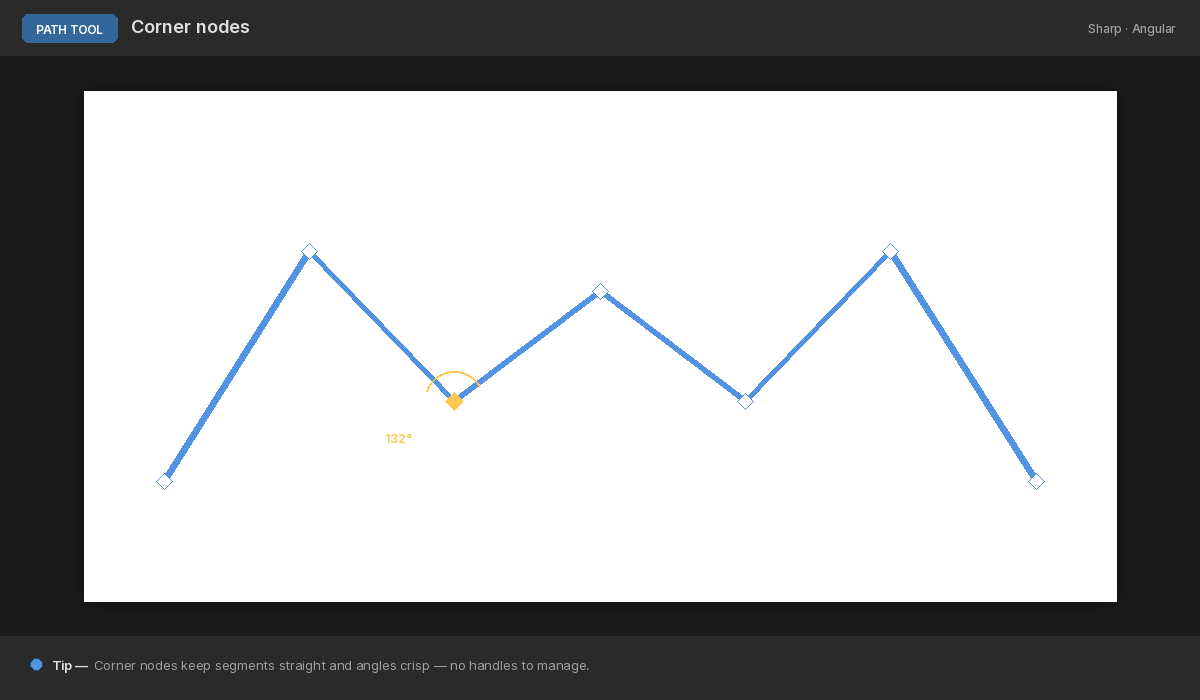
Corner nodes are the simplest type: no handles, sharp angles. Convert a curved node into a corner when you want a sudden direction change.
Spline nodes
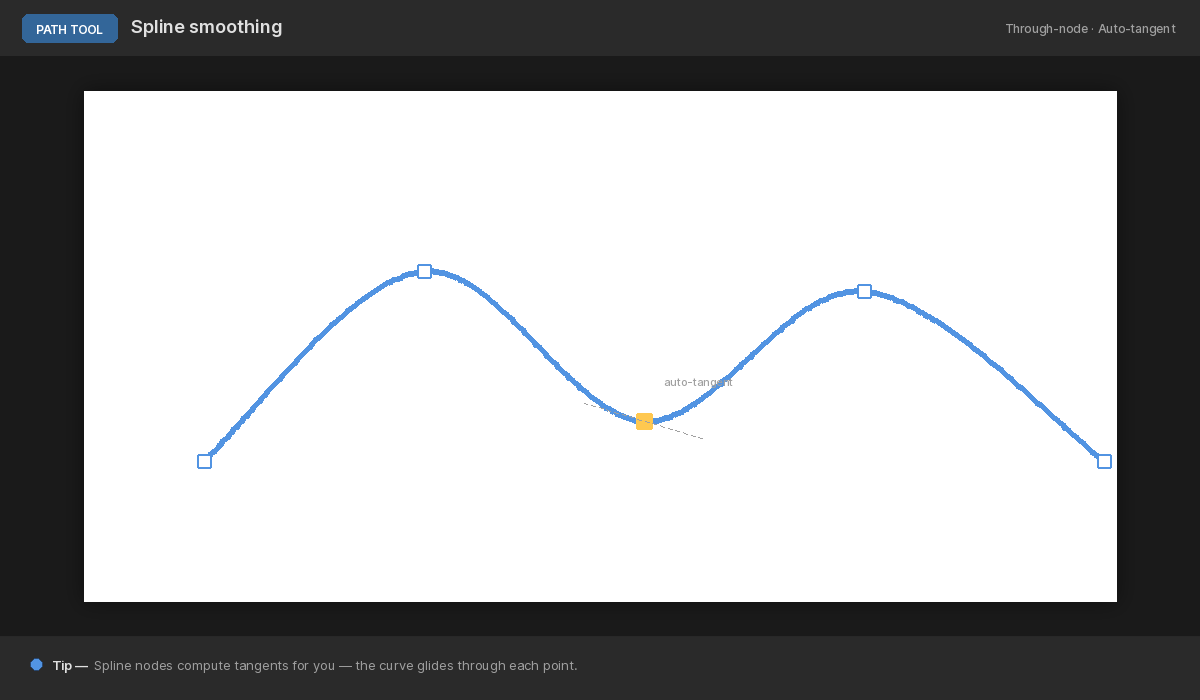
Spline (Hermite) nodes are shape-free — their curvature is inferred from their neighbors. Drop a few in a row and you get a smooth, evenly weighted curve with no handles to babysit.
Adding nodes
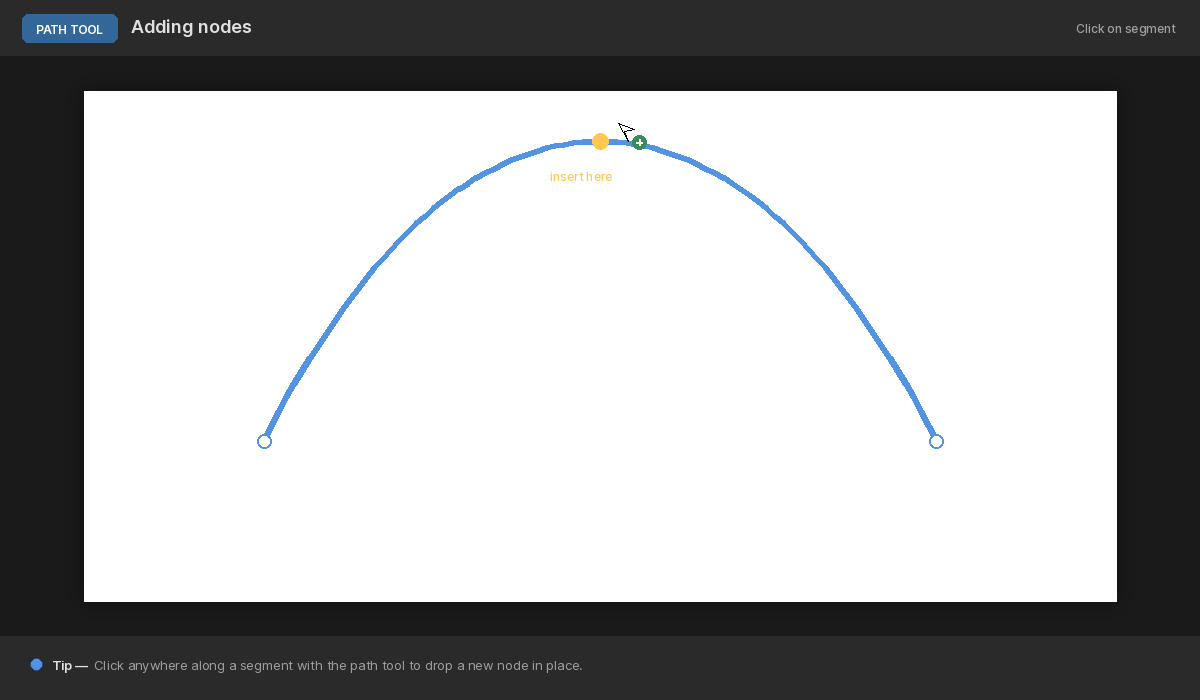
With a path selected, hover near the stroke. A green preview node appears at the closest point on the path. Double-click the preview to insert a node there. The new node inherits the previous node's type, so inserting on a bezier segment keeps the curve smooth.
End style
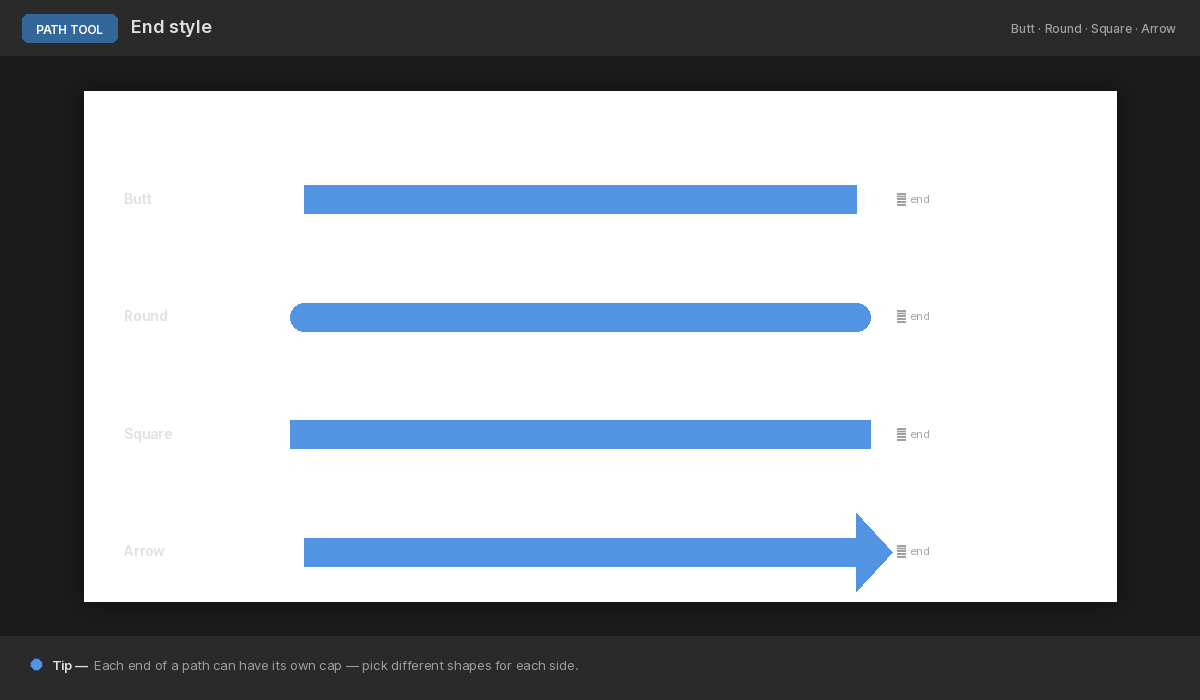
For open paths, the Properties panel's Stroke section lets you choose the cap (butt, round, or square) and join style (miter, round, bevel). Round caps are friendly for hand-drawn illustrations; square caps feel engineered.
Path style
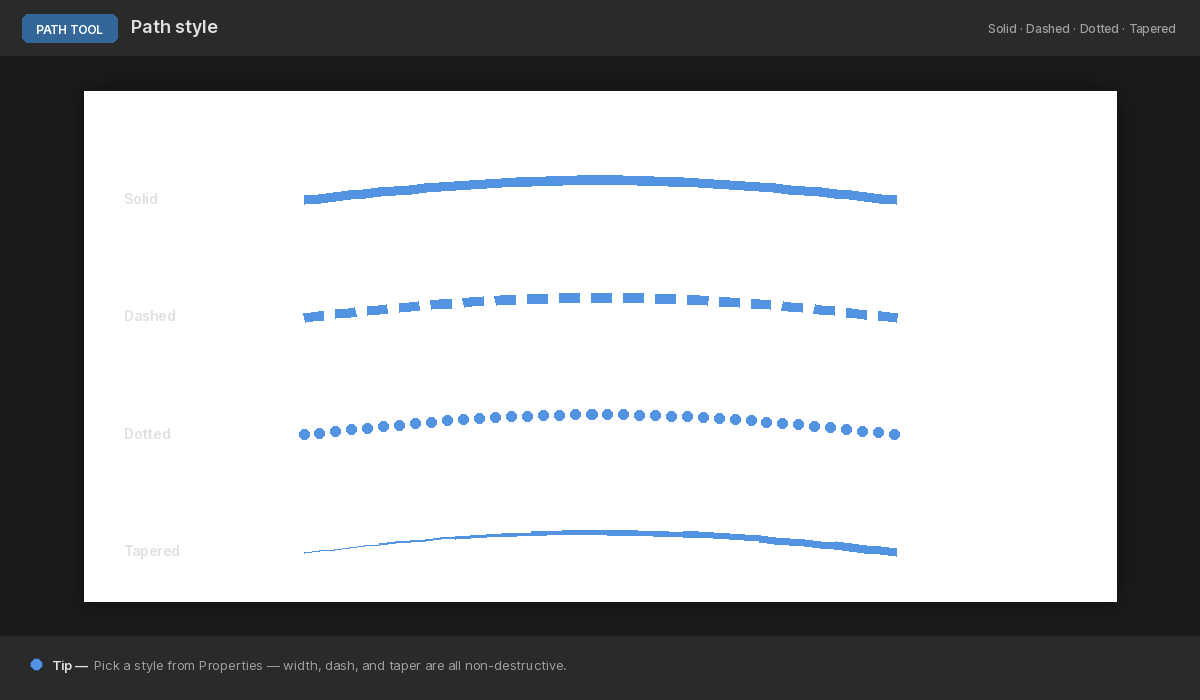
Fill and stroke for the whole path live in the Properties panel too — solid colors, gradients, or patterns on the fill; dashed strokes, width, and color on the stroke. Open the color swatch to use the Brushee color picker, which pulls from the palette slots you've saved.