
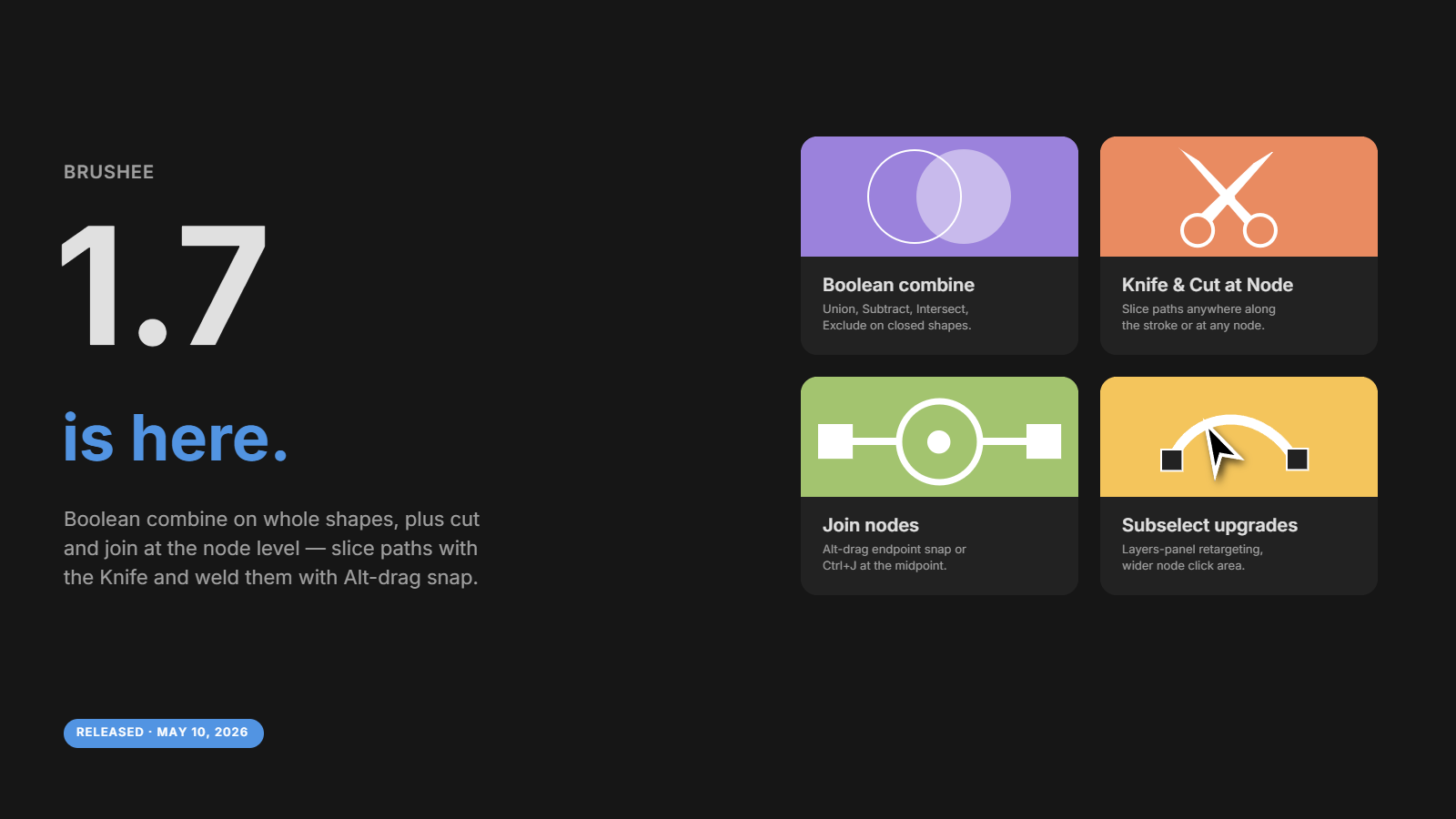
Four days, one minor release. Brushee 1.7 lands two related vector-editing features that pair naturally: Boolean Combine to weld and carve whole shapes, and Cut & Join Paths to slice and re-stitch at the node level.
Boolean Combine
Pick two or more closed, fillable shapes and choose one of the four operations under Modify ▸ Combine (or right-click → Combine):
- Union — fuses the shapes into one outline of the combined area.
- Subtract — the shapes in front cut their footprint out of the back-most shape. Drop a circle on a square and Subtract to punch a hole.
- Intersect — keeps only the overlap.
- Exclude — symmetric difference: keeps everywhere covered by an odd number of shapes.
The shape stack matters for Subtract — the back-most shape survives, everything in front gets cut away. The other three are symmetric. The result inherits the back-most shape's fill, stroke, opacity, blend mode, and filters, so styling carries through.
Both the menu and the right-click entry grey themselves out when the
selection isn't compatible (fewer than two fillable shapes, mixed in a
line or an open path, etc.) so they don't promise a no-op. Ctrl+Shift+U
runs Union as the common case. The math is done by a tiny
polygon-clipping library that lazy-loads only on first use, so boolean
ops add nothing to the initial bundle until you actually invoke one.
The Boolean Combine guide covers the trade-offs around curve fidelity (beziers are flattened to short polylines) and compound paths with holes (not yet preserved through ops).
Cut & Join Paths
The other half of the release is node-level. Where Combine works on whole shapes, Cut & Join works at any point along a path's stroke or at any existing node.
Cutting
Four ways to cut, all sharing the same primitive:
- Knife tool under the Pen flyout — hover any path's stroke and a green diamond shows the cut location. The candidate path's nodes and handles light up so you can see exactly what you're slicing into. Click to commit.
- Right-click → Cut at Node in the Subselect tool, or
Ctrl+Shift+K. - Cut button in the Properties panel's node section when Subselect has a node selected.
- Shift+click in Subselect — the hover cursor flips from a green plus (insert) to a red scissors slash (cut) while Shift is held.
A brief red slash flashes perpendicular to the path at the cut point so the action reads clearly even on a busy canvas. Cutting an open path splits it into two separate path objects, each with its own layer-panel row. Cutting a closed path opens it up into a single open path. Mid-curve cuts use de Casteljau subdivision so both halves' handles are recomputed and the visible curve shape is preserved.
Joining
Three ways to join, all merging two nodes into one:
- Modify ▸ Join Nodes (or
Ctrl+J) — select two nodes in Subselect and the merge lands at their midpoint. - Right-click → Join Nodes — same as the menu.
- Alt+drag — hold Alt and drag any endpoint. A pulsing green ring appears over candidate target nodes within ~12 pixels; release on the ring to commit. The snap lands at the target node's position (not the midpoint), so the dragged endpoint snaps exactly where you released. Alt can be pressed before or after the mousedown — the order doesn't matter.
What's joinable: both nodes have to be open-path endpoints. Closed paths, mid-path nodes, lines, and text aren't joinable through Alt+drag — the indicator simply doesn't light up over them. Joining two endpoints of the same path closes it; joining endpoints of two different paths concatenates them, automatically reversing the path direction when needed so the joining ends meet.
The full mechanic, including the trade-offs and how cut composes with join, is in the Cut & Join Paths help topic.
Subselect quality of life
A handful of node-editor improvements landed alongside the new gestures:
- Layers panel selections now follow — clicking a path in the Layers panel while Subselect is active immediately retargets the node editor to that path, instead of staying stuck on whatever was selected before.
- Wider click area for picking other paths — the Subselect tool now uses a stroke-proximity fallback when the cursor misses the filled body of a thin path. Click within ~22 screen pixels and the closest visible path wins, regardless of zoom.
- Wider node hit when Alt is held — so a slight miss on a node still arms the Alt-drag gesture instead of falling through to "select the path body."
- Context-submenu hover bridge — the right-click submenu (Node Type, Combine, etc.) now has a 250 ms hide delay, so the cursor can cross the gap between parent item and submenu without the submenu vanishing mid-traverse.
Flatten to Bitmap fix
Modify ▸ Flatten to Bitmap would occasionally leave the new bitmap
invisible — layer.objects had the bitmap but layer.childOrder (the
render-walk array) didn't, so the bitmap was in the model and not on the
canvas. Fixed by mirroring the insertion into both arrays.
Help
- New Cut & Join Paths topic under Help ▸ Drawing.
- New Boolean Combine topic under Help ▸ Edit.
- Paths & Nodes now points to the cut/join topic for the destructive operations.