

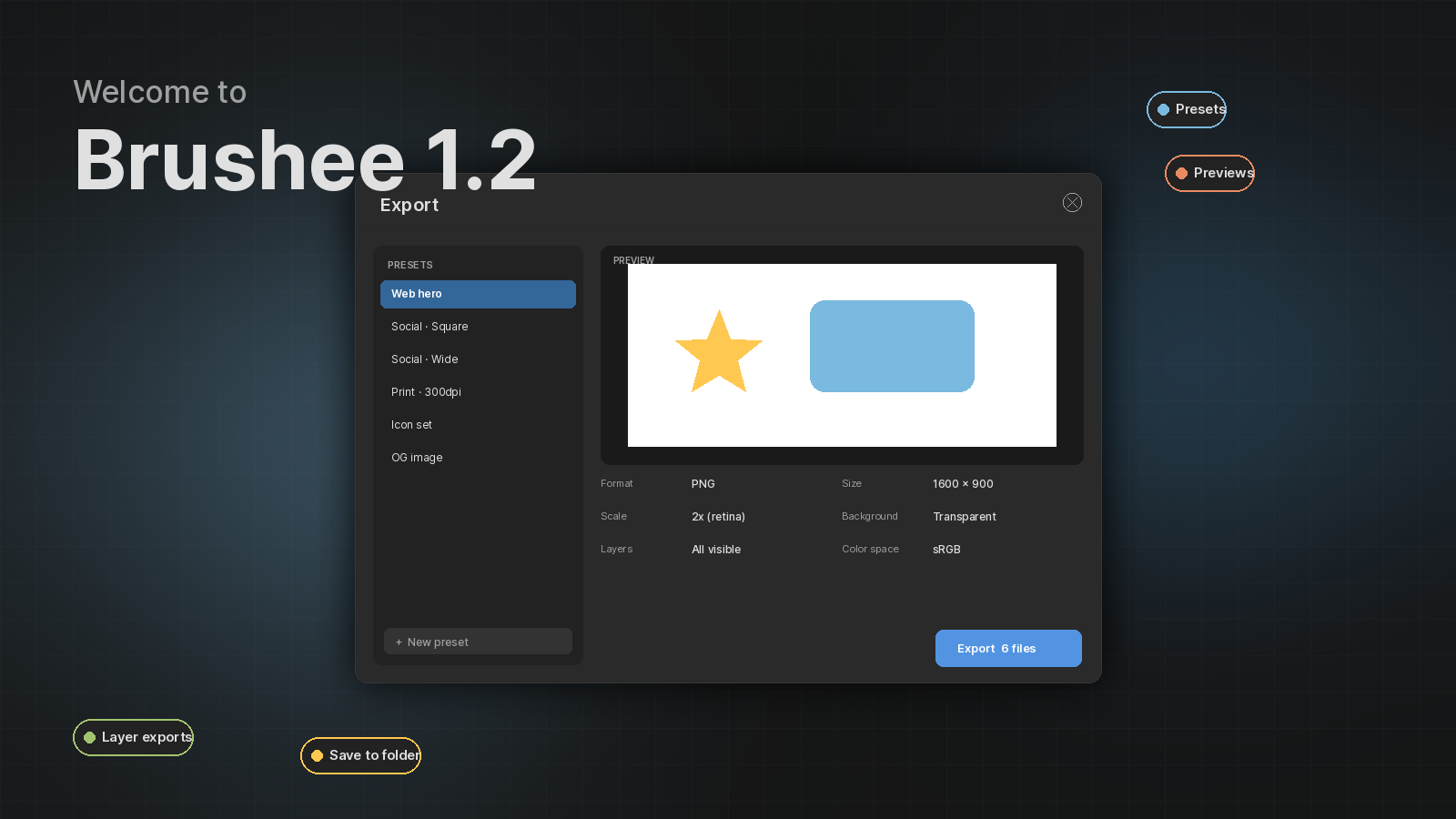
Export was the most-requested part of Brushee, and 1.2 rebuilds it from the ground up. The new dialog puts a live preview front and center and opens up a lot of workflows that used to be fiddly one-offs.
Preset outputs
Pick a format from the single-file list — PNG, JPEG, WebP, SVG — or jump straight to a multi-file preset:
- iOS Icons
- Google Play Icons
- Amazon AppStore Icons
- Favicons (PNG + ICO bundle with apple-touch and Android-chrome sizes)
One click generates the full sized set.
Live previews
The dialog's center column renders your output at the target size as you change settings. Toggle Show original to overlay the unscaled source next to the preview and eyeball the difference.
Multi-file export
Multi-file presets generate every file in a single pass. Combine with
filename tokens like {filename}, {scale}, {width}, {format}, and
{layer} to keep the outputs tidy.
Export by layer
Right-click a layer and pick Export Layer… to isolate it in the dialog, or use File → Export Visible Layers Separately… to batch- export every visible layer with the same preset. Stencil layers are skipped automatically.
Custom presets
Create Preset (or Custom… from the preset dropdown) opens an editor where each line is one output file:
{filename}@{scale}x.{format}   [scale:2x, format:png]
appHeader.webp                 [width:1000, height:200, quality:92, format:webp, layer:Header]
hero-bg.jpg                    [width:1920, quality:85, stroke:0.5]
icon.ico                       [format:ico]
A Preview tab shows the resolved file plan live as you type. Saved presets show up under My Presets.
ZIP or save-to-folder
Download the whole export as a single ZIP, or — in Chrome and Edge — pick Save to Folder and Brushee writes each file straight into a directory of your choosing, no ZIP at all.