
Text
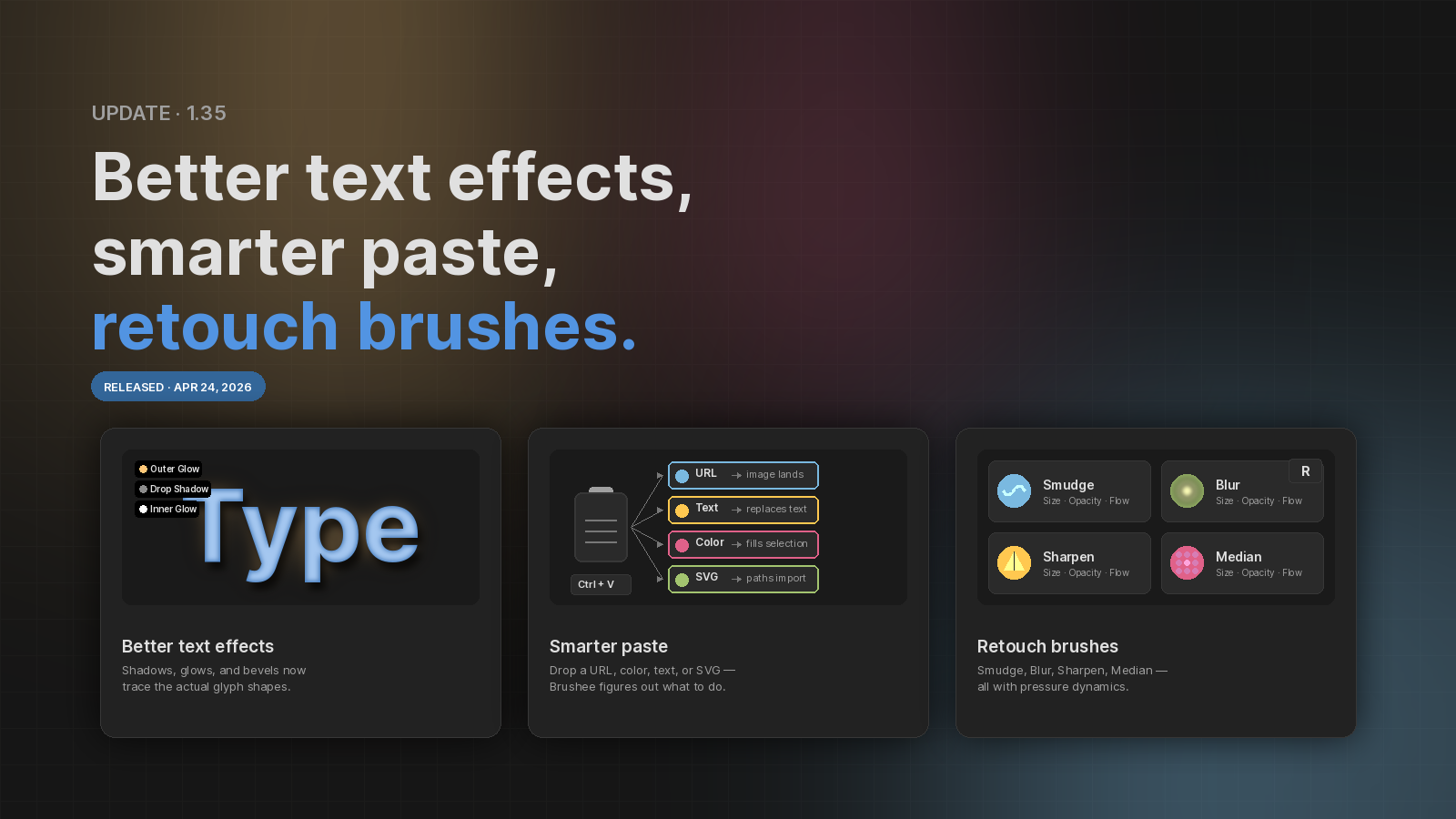
- Improved text filters. Drop Shadow, Inner Shadow, Outer Glow, Inner Glow, and Inner Bevel now trace the actual glyph shapes instead of the text object's bounding frame. Shadows hug each letter, glows radiate from the strokes, and embossing follows the lettering.
Document
- Toggle document borders. A new Clip to Document checkbox in the document properties panel (and in the View menu) masks everything outside the page boundary so you can preview exactly what will export.
Color Picker
- HSL, HSV, and Hex tabs. The RGB picker is still the default, but you can now switch to HSL or HSV (hue ring plus saturation/lightness or saturation/value square inside it) or to Hex — a hexagonal honeycomb of swatches with a neutrals row, handy for grabbing common colors at a glance.
Paste
Brushee's paste (Ctrl+V) now understands more than internal
object copies:
- Paste an image URL — drop
https://example.com/image.pngand the image lands on the active layer at its natural size. - Paste text — with a text object selected, pasted text replaces its content. Inside text inputs and the inline text editor, native copy/cut/paste shortcuts now work as expected.
- Paste a color —
#ff6432,rgb(...), orhsl(...)applies to the fill of every selected object. Great for dropping a color sampled from a design tool straight onto a shape. - Paste SVG code — paste
<svg>...</svg>text and the shapes import as editable path objects.
Import SVG to paths
SVG files (via File → Import Image…, drag-and-drop, or paste) are now converted shape-by-shape into path objects — fills, strokes, and transforms preserved. Refine the paths afterward with the Subselection tool.
New retouch tools
A new Retouch group (R) joins the bitmap row with four
brush-style pixel operations:
- Smudge — drag pixels along the stroke direction.
- Blur — soften a region with a 3×3 neighborhood average.
- Sharpen — unsharp-mask sharpen that converges (no more noisy build-up on overlapping strokes).
- Median — replace each pixel with the neighborhood median for speckle removal.
All four share the Paint tool's size / opacity / flow / smoothing knobs and full pressure dynamics (stylus or velocity-synthesized), so the controls feel familiar from day one.