

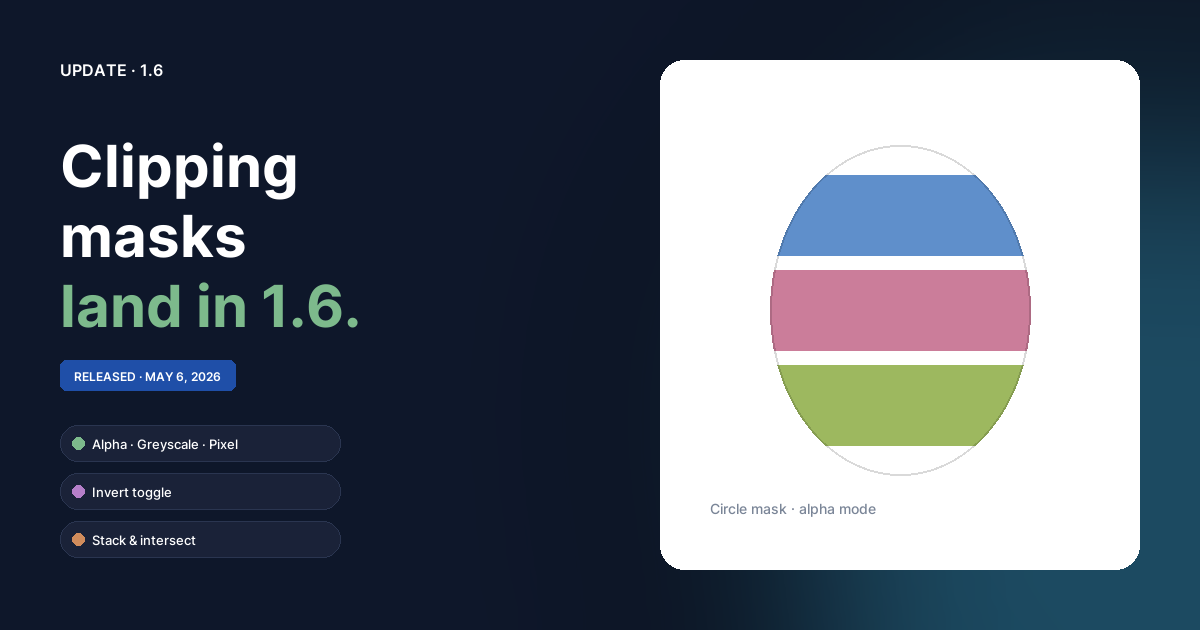
Convert any item into a mask
Right-click an object or group in the Layers panel and pick Convert to Clipping Mask. The item disappears from the rendered image and starts cutting out the siblings below it. Right-click again to swap modes or flip it back to a normal item.
A clipping mask only ever affects:
- siblings in the same parent (layer or group),
- siblings that sit below it in the panel (lower in z), and
- siblings on the same side of any layer boundary — masks don't reach across layer borders.
Items above the mask in the same parent stay untouched. A child layer that's a sibling of the mask is clipped as a single unit; its internal contents render normally first, then the whole layer's output is clipped on the way out.
Three clipping modes
With a mask selected, the right-click menu exposes Clipping Mode:
- Alpha — the default. The mask's alpha channel passes straight through, so soft edges, gradient fills, and feathered brush strokes carry their softness into whatever's clipped.
- Greyscale — the mask's luminance becomes the clip strength. White is fully visible, black is fully hidden, mid-greys are partial. Useful for vignettes, soft frames, and depth-style fade-outs from a black-and-white mask.
- Pixel — binary alpha. Any non-transparent pixel shows the underlying art at 100%; everything else is hidden. Hard cutouts regardless of the source's anti-aliasing.
Invert
The Invert Mask toggle flips the clip in place. What was hidden becomes visible and vice versa, and the visible inverse extends to fill the entire document — so an inverted shape mask reads as "everything except this hole." Outside the document bounds, the inverse stays clipped to nothing.
Stacking masks intersect
Stack two or three masks in the same parent and an item below all of them is visible only where every mask has coverage. Each mask gets its own color from a muted-but-readable palette and paints a thin stripe along the left edge of every row it touches. The stripes are sorted so each mask occupies its own column across every row, regardless of how many other masks are between them — orange always stays orange's column, green always stays green's column.
Mask rows are italicised and use a mask icon in place of the usual shape icon, so it's easy to tell at a glance which rows are doing the clipping versus being clipped.
Plays well with layer masks
Clipping masks are distinct from the painted layer masks added in 1.5 (the eye-thumb you paint into in the Layers panel). The two stack: an item can be inside a clipping group and have its own painted layer mask at the same time. Layer masks shape only the object they're attached to; clipping masks shape the object's siblings.
Misc
- Tools-panel toggle button is hidden by default. The keyboard
shortcut (
Ctrl+Alt+T) and Window → Toggle Toolbar still work; the floating tab on the side of the panel is gone because it was getting in the way more often than it was earning its space. - Layer thumbnails now respect clipping masks, so a layer that uses a mask to cut out a window shows a window in its mini-preview rather than a flat painting of the mask.
- Help & guides updated to cover clipping mask modes, invert behaviour, and the panel color stripes.