

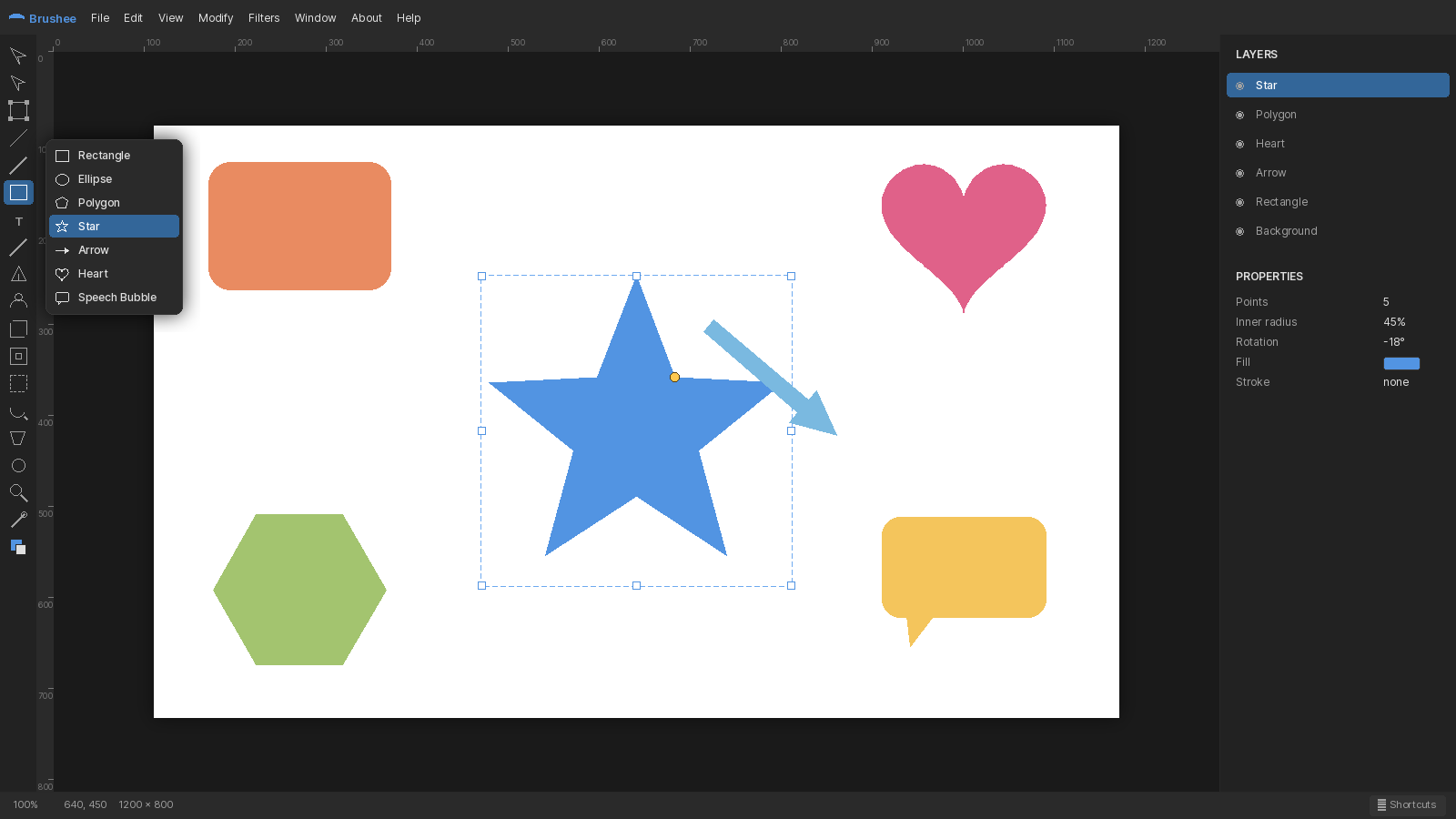
Every shape in Brushee's shapes flyout (U) is a smart shape — parametric, editable, and fully reversible. Alongside the usual resize corners, smart shapes show small yellow diamond handles that tune shape-specific properties live. The Properties panel exposes the same values as numeric fields if you'd rather type exact numbers.
Drop a shape by dragging on the canvas. Without Ctrl held, Brushee switches back to the Pointer so you can immediately reposition or resize; with Ctrl held, you stay in the shape tool for rapid-fire creation.
Rectangle
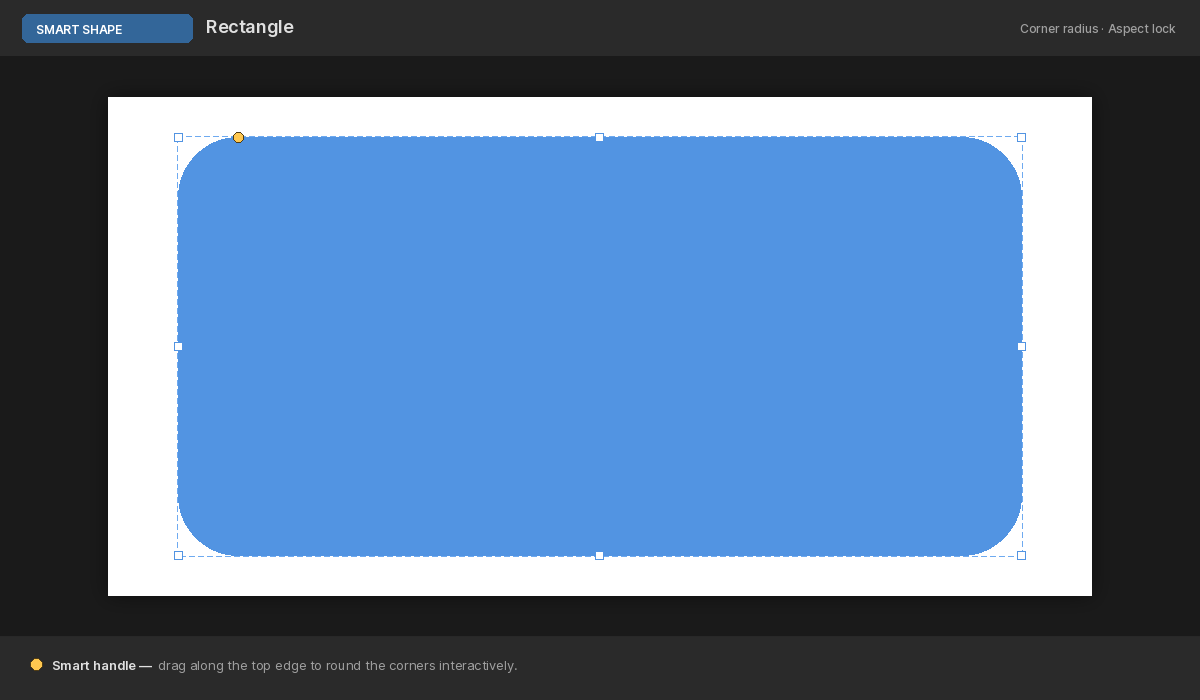
An inline handle sets a uniform corner radius. Unlock corners in the Properties panel to get four independent corner handles, each draggable to its own radius.
Polygon
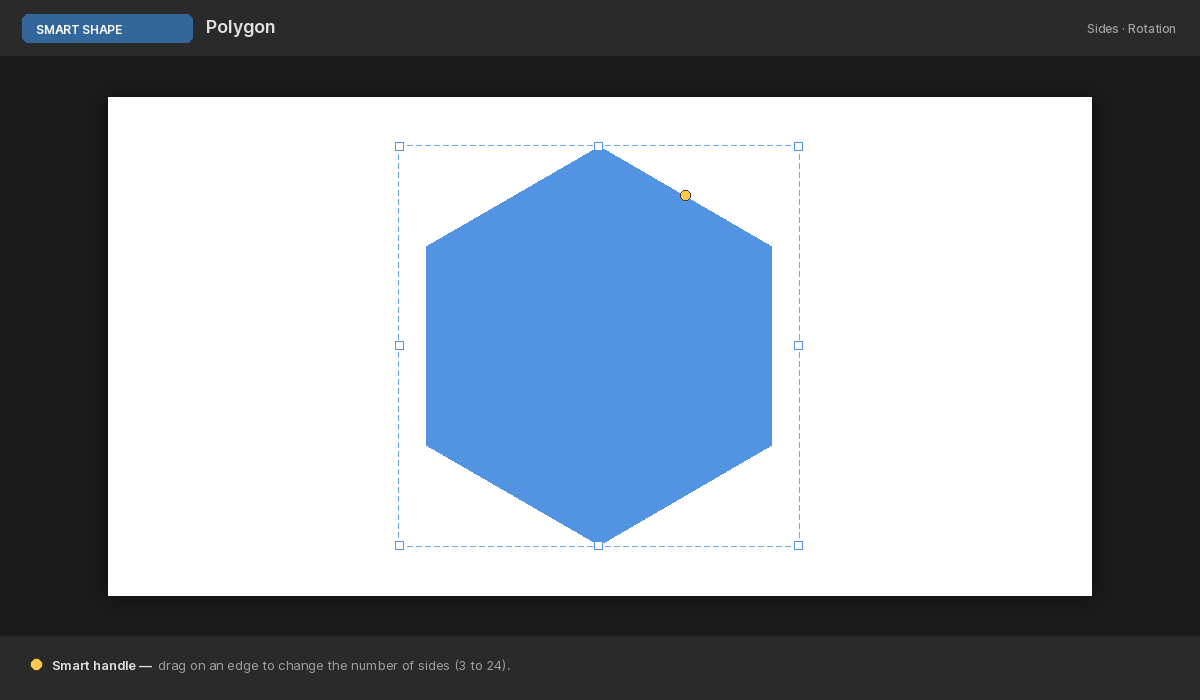
One handle above the shape sets the number of sides (3–24); a second handle on a corner sets the corner roundness. Everything stays a regular polygon — perfect for hex grids and crisp outlines.
Star
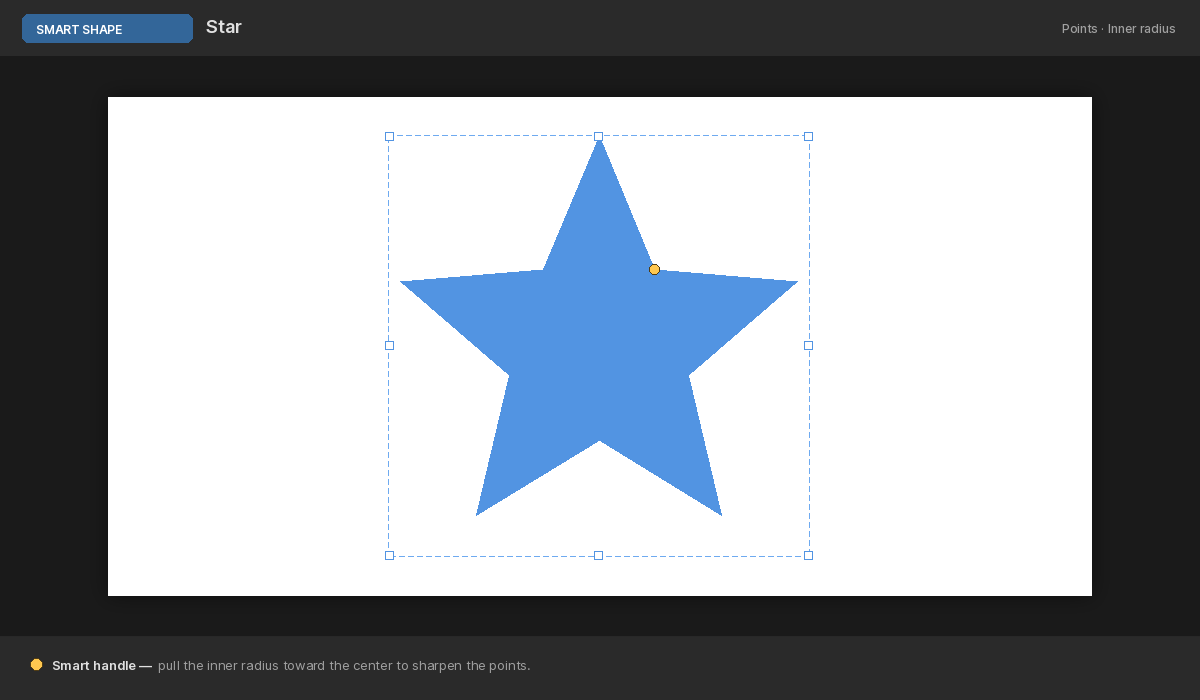
Four handles control points count, inner radius ratio, tip curvature, and valley curvature. A few drags transforms a sheriff's star into a cartoon burst or a rounded flower.
Arrow
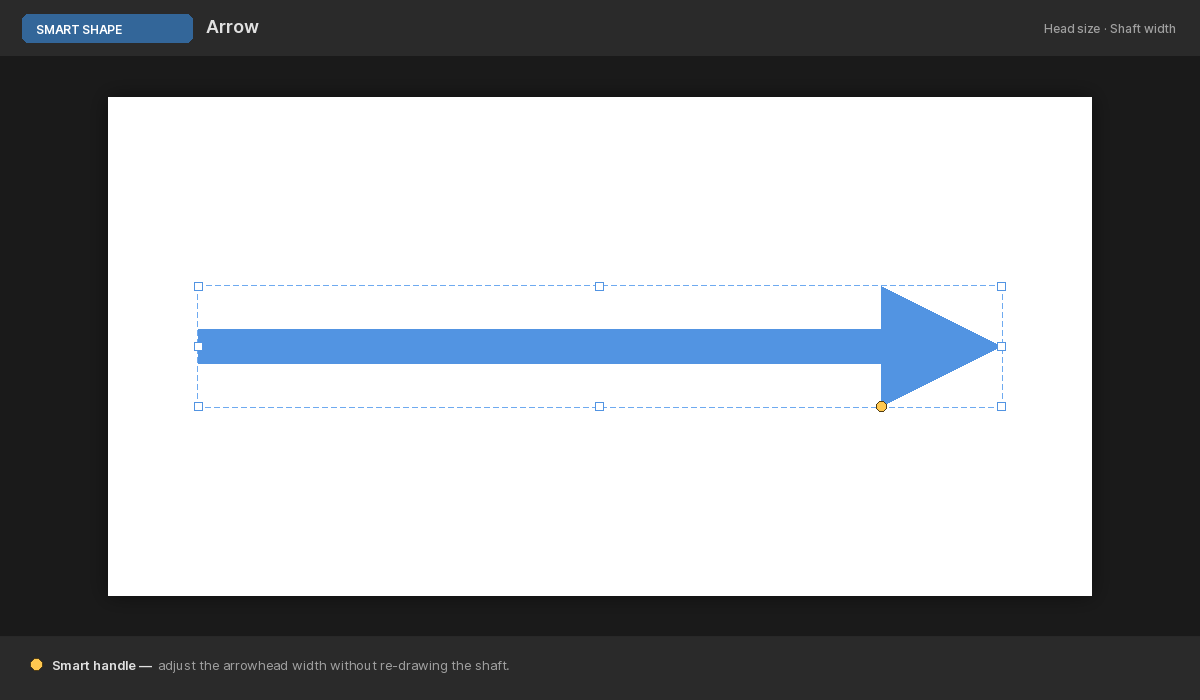
Tune head width, head length, neck width, tip curvature, and tail inset (the V-notch) — anything from a skinny pointer to a chubby banner arrow.
Heart
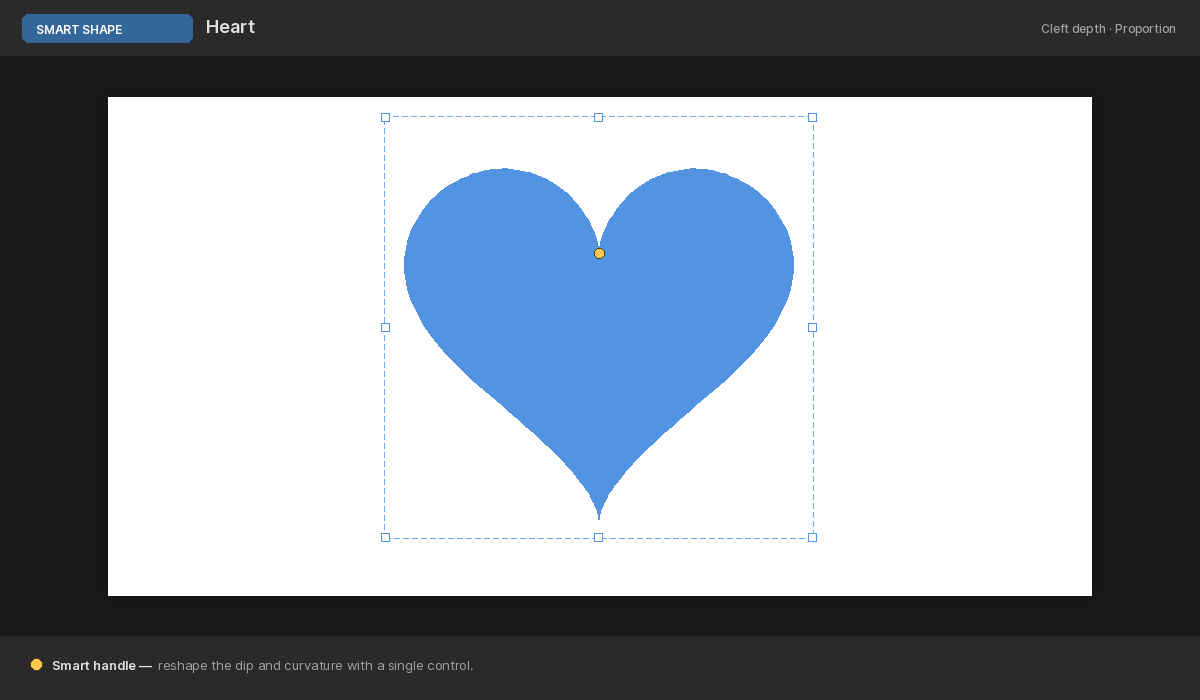
One handle sets lobe size (via the side-node control points), and one repositions the tip anywhere you like. Great for drifting hearts that aren't all the same shape.
Speech bubble
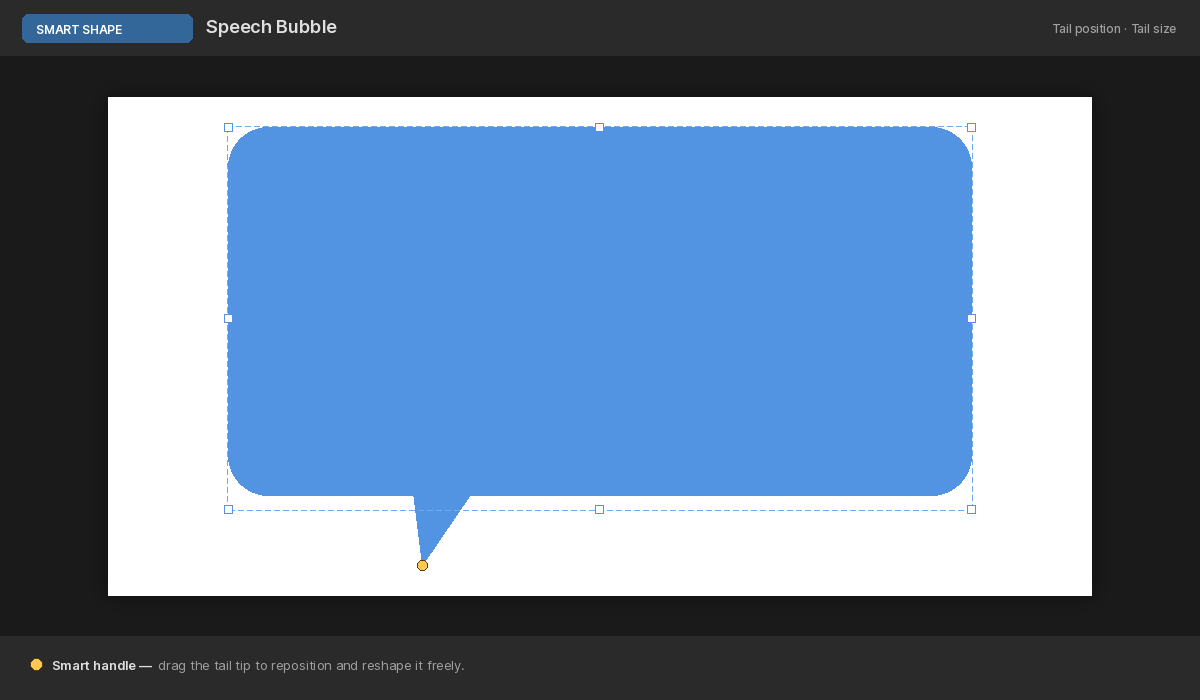
Corner radius, tail width, tail curvature, and a free-drag tail tip. The base of the tail auto-attaches to the bubble edge closest to the tip, so bubbles stay connected as you move characters around.
Convert to Path
When you've pushed a smart shape as far as its parameters go, pick Modify → Convert to Path (or Ctrl+Shift+P) to turn it into a bezier path you can edit node-by-node. Entering Skew, Stretch, or Trapezoid does the conversion automatically so the warp can deform individual nodes. See the Path Editing guide for what comes next.