

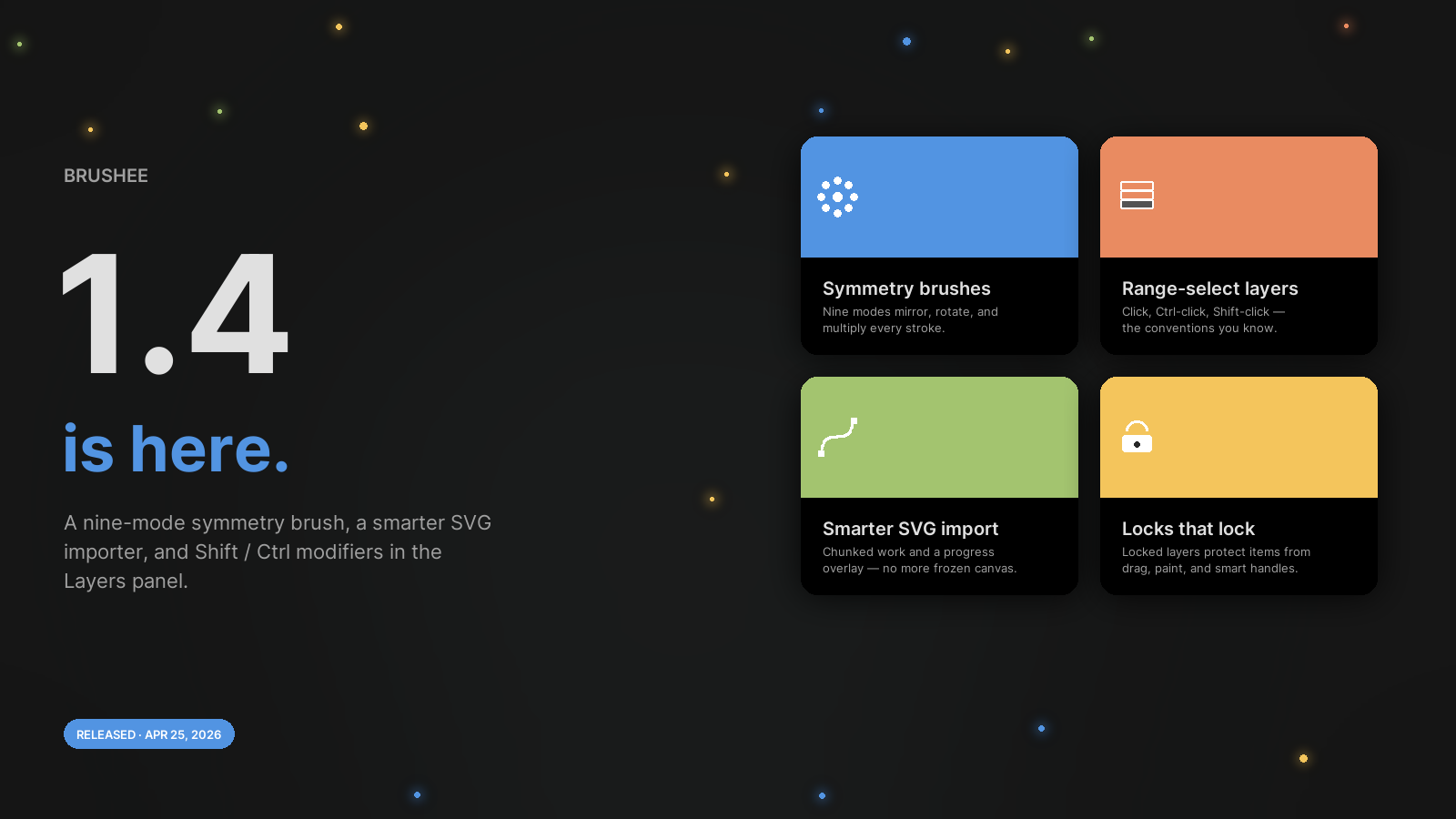
Brushee 1.4 brings a brand-new way to paint, a much faster way to import, and the selection conventions you already know from the rest of your desktop — straight into the Layers panel.
Symmetry brushes
The Paint tool gains a Symmetry section with nine modes that mirror, rotate, and multiply every stroke through a movable on-canvas frame: Vertical, Horizontal, Dual Axis, Diagonal, Parallel Lines, Radial, Mandala, Circle, and Spiral. The frame is moveable, scalable, and rotatable from the canvas, and the brush cursor previews dashed circles at every echo location so you know exactly where the paint will land before you press the mouse.
Spiral and Mandala are especially fun — Spiral winds N arms outward from the centre with an adjustable curvature, and Mandala stacks radial symmetry on top of reflective symmetry so a single dab becomes 2N stamps.
See the Symmetry Brush guide for the full walk-through.
Layers panel — Shift and Ctrl select
The Layers panel now matches the multi-select conventions from your OS: Click for single select, Ctrl / ⌘ + click to toggle one item in or out, and Shift + click to pick a range from the previous anchor. Grab a run of layers, align them, lock them, or move them all in one gesture.
Smarter SVG import
Large SVG imports used to freeze the canvas while every shape was sampled. The importer now does the work in chunks and shows a progress overlay so you can see how far along it is — no more blank screen on files with hundreds of paths. Drag-drop, paste, and File → Import Image… all share the new pipeline.
Locks that actually lock
A couple of lock-state holes are sealed up. Locked layers now properly protect their items — no more sneaking in a drag, resize, or paint stroke on a locked bitmap — and smart-shape handles disappear when their object is locked instead of staying draggable.