

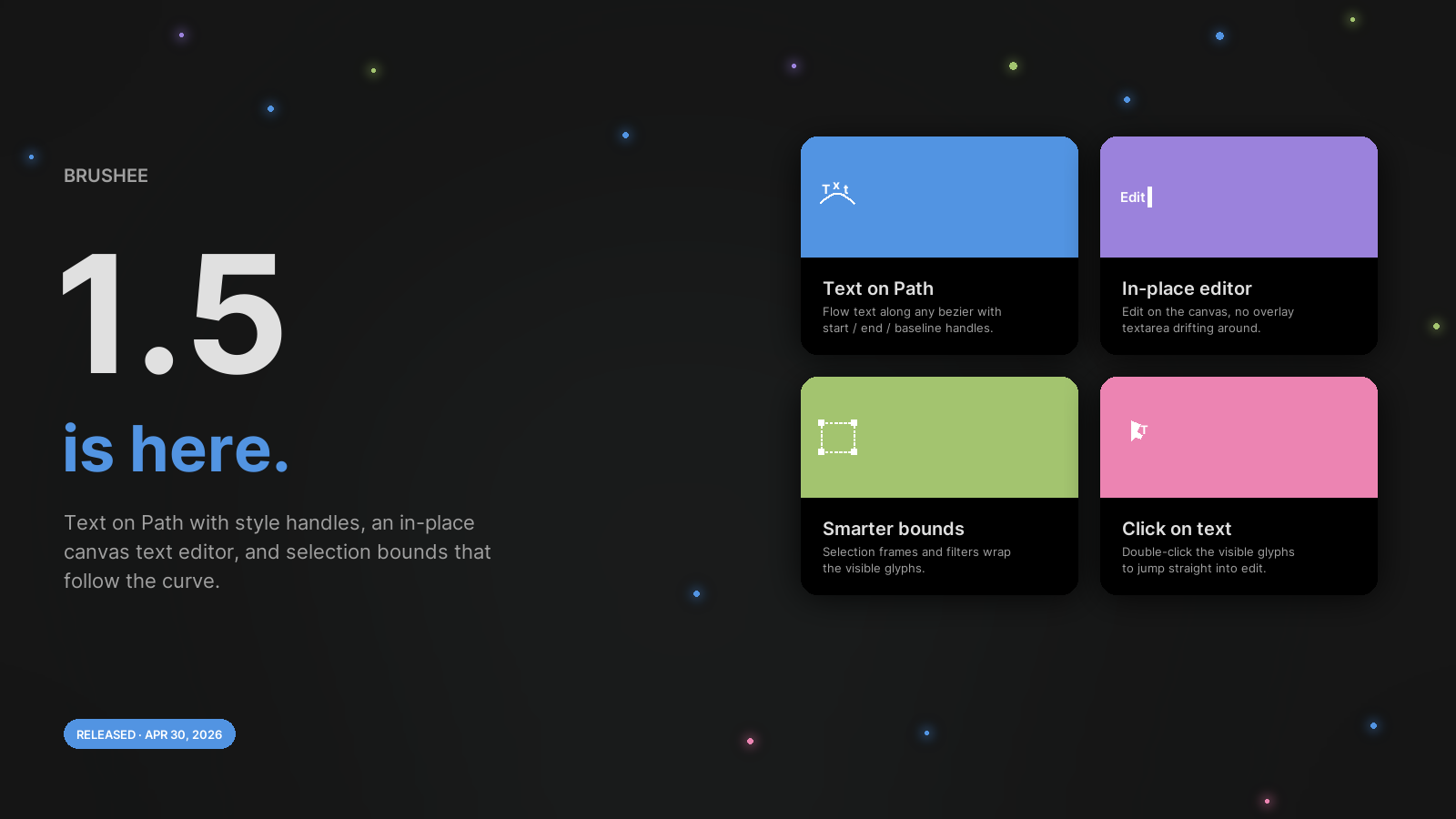
Brushee 1.5 is all about text. Type along any curve, edit in place on the canvas with no overlay textarea, and watch selection frames and filters expand to follow the glyphs — even when they swing well past the path's bounding box.
Text on Path
Any bezier path can now carry a string of text that flows along the curve. Four ways to attach it:
- The new Text on Path subtool under the Pen — draw a path and the inline editor opens immediately.
- Right-click a path → Add Text to Path — convert an existing path.
- Drag a text object onto a path — hover the cursor over the stroke and a preview shows exactly where the text will land. Release to commit; the path inherits the text's font, fill, and content.
- Right-click a text-path → Remove Text from Path — pop the text back out as a standalone box.
Three style handles let you sculpt the layout without leaving the canvas: drag the filled triangle to trim the start, the hollow triangle to trim the end, and the diamond perpendicular to push the text above or below the curve. Reverse direction, flip orientation, and hide-the-path-but-keep-the-text all live in a new Text on Path section in the Properties panel.
See the Text on Path guide for the full walk-through.
In-place text editor
The text editor is rewritten from scratch. Double-click any text — on a path or on its own — and edit it right where it lives on the canvas. There's no longer a floating textarea that drifts a pixel or two when you click in. A blinking caret marks the insertion point, and for text-on-path the caret banks with the local tangent of the curve.
Selection works the way you'd expect: drag for a range, Shift + click or Shift + arrow to extend, Ctrl / ⌘ + A for select-all, typing replaces the selection. Highlights are drawn directly on the canvas — per-glyph rotated rectangles for text-on-path so the band follows the curve, per-line rectangles for normal text.
Smarter selection bounds
Selection frame, resize handles, rotation halo, and rotation hit-test all expand to wrap text-on-path glyphs. Move, resize, or rotate the path and everything tags along — and you can grab the corner handle even when it sits around the text rather than the path itself.
The same expansion drives the filter offscreens, so drop shadow, outer glow, and inner-bevel renders now follow the visible glyphs instead of clipping against the path's bbox.
Click on text to edit
Clicking on the visible glyphs (not just inside the path bbox) now counts as clicking on the path — so you can double-click the characters you actually see, even when the text extends well past where the path itself stops.