Brushee 1.0 went live in April. Since then the 1.x releases have added layer and clipping masks, Text on Path, boolean combine and the Knife, image tracing, layered PSD files, autosave, and a lot more besides. 2.0 is where it starts to feel like a different app: it paints like real paint, opens files from another editor, and goes wherever you do.
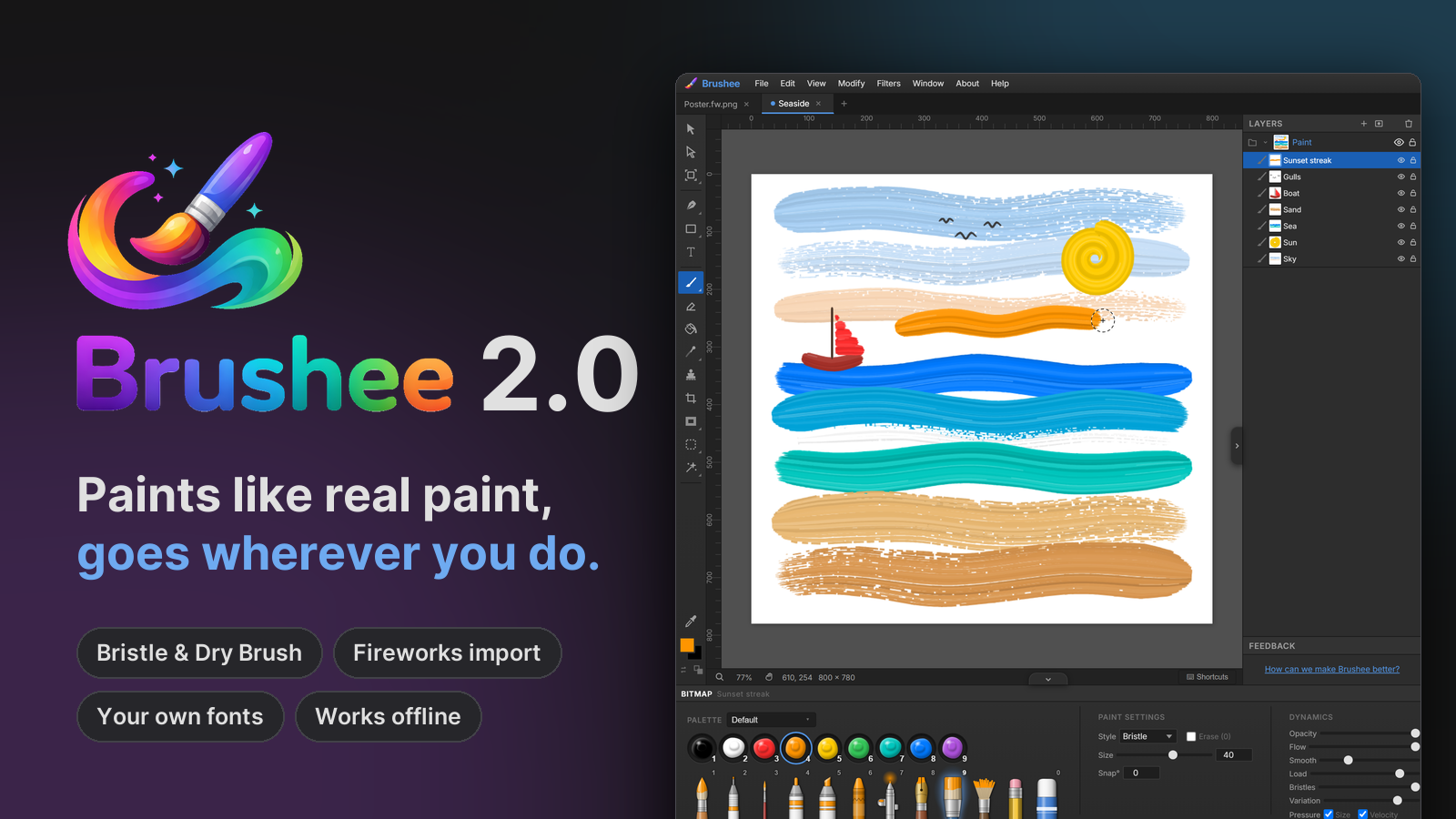
Bristle and Dry Brush
Two new paint styles work with a fan of individual bristles instead of a smooth round tip. Strokes show streaks along their length and slight colour differences from bristle to bristle. They start rounded where the brush touches down and taper where you lift it.
The paint also runs out as you go:
- Bristle carries a full load and lays long, streaky strokes.
- Dry Brush starts patchy and breaks up quickly, so the paper shows through between the bristles.
Three sliders in the Properties panel tune them. Load sets how far the paint lasts, Bristles sets how dense the fan is, and Variation sets how much the colour shifts between bristles. Light pressure dries the brush faster.
They work with the rest of the paint tool, too:
- Erase with either style and it erases with its bristles. A dry brush's eraser runs dry as well, taking off less toward the end of the stroke.
- Tilt a stylus and the fan splays wider, up to about 1.6× with the pen laid nearly flat. Mice, fingers, and upright pens are unaffected.
- Symmetry mirrors the bristle pattern in its mirrored copies, so a reflected stroke looks like a true reflection.
On a slower device the live preview may simplify while you draw, but the finished stroke is always drawn at full quality.
A brush tray you can see
The brush presets in the Properties panel are now drawn as the tools they are: brushes, pens, markers, a crayon, an airbrush, a calligraphy nib, and erasers. Each tip takes on the current paint colour, and the selected brush grows with a glow behind it. Palette colours sit in round wells as glossy dollops of paint.
The tray grows to 11 slots to make room for Bristle
(Shift+9) and Dry Brush. If you had customised slot 9,
your brush stays there and the new ones slot in after it.
0 still toggles the eraser, and Shift+0 now does
too.
Right-click a brush slot for a menu: save the current brush into
that slot, reset that slot to its default, or reset the whole tray.
Right-click used to overwrite the slot on the spot; now nothing changes
until you pick an option. Shift+click still saves directly.
Two smaller changes round it out. The Pencil style is now called Detail, because it was always a thin, hard round rather than graphite. And a blank document now opens on the Paint tool with brush 1 ready, so you can start painting the moment Brushee loads.
Fireworks documents open with their layers
Adobe stopped developing Fireworks in 2013, but plenty of designers
still have years of work saved in its files. Fireworks kept its editable
document hidden inside an ordinary-looking PNG, and Brushee can now read
it. Open a .fw.png, or any PNG saved by Fireworks, and you get a
layered document instead of a flat picture, with one tab per page.
Open, Open Recent, drag-and-drop, paste, and Place all recognise them,
and ordinary PNGs open exactly as before.
- Layers keep their names, order, visibility, and lock state.
- Vector shapes become editable paths with their bezier handles, solid and gradient fills, strokes, opacity, and live effects such as glows, shadows, bevels, and blurs.
- Bitmaps arrive pixel for pixel, and groups stay groups.
- Text stays editable. If it uses a font you don't have, a Missing Fonts dialog asks what to do, just as Fireworks did. Maintain appearance shows the text exactly as Fireworks drew it until you edit it, and Replace with switches it to a font you choose. Brushee remembers your answer for each font.
Anything Brushee can't reproduce — text on a path, perspective text, mixed type styles in one block, textured brush strokes, and a few effects — comes in as an image of exactly how Fireworks drew it, and a note after the import lists what was converted and why. The Web Layer (slices and hotspots) is skipped, and animated documents import their first state.
Strokes inside or outside the edge
Fireworks could sit a stroke inside a shape, centred on its edge, or outside it, and now Brushee can too. A new menu beside the stroke controls in the Properties panel sets Center, Inside, or Outside on any closed shape, and SVG export keeps the choice.
Your own fonts
Brushee's font list used to come only from Google Fonts. Window ▸ Manage Fonts… can now bring in fonts from your own computer as well:
- Add font file… loads a font file you have. It's kept in your browser and shows up in the font picker like any other family.
- Installed fonts — in Chrome, Edge, and other Chromium browsers, Brushee can list the fonts installed on your system (the browser asks your permission first). Add one to your collection to keep it at the top of the font picker.
Nothing is uploaded either way. Your own fonts work with Convert to Path and with the text outlines in SVG export, just like Google Fonts, and installed fonts count as present when a Fireworks file asks for them.
A ready-made size for everything
File ▸ New Document Type… (Ctrl+Alt+N) opens a gallery of
canvas sizes, sorted by where the work is going:
- Social Media — Instagram posts, portraits, and stories, TikTok, Facebook, X, LinkedIn, YouTube thumbnails and channel art, Pinterest, link preview cards, profile pictures, stickers, and emoji.
- App Stores — App Store and Google Play icons and screenshots, plus Chrome Web Store icons, screenshots, and promo tiles.
- Web — desktop, laptop, tablet, and mobile screens, hero banners, site icons, logos, email headers, and the standard ad sizes.
- Print — US Letter, A4, A5, photo prints, postcards, and business cards, all at 300 dpi.
- Video & Slides — 720p, 1080p, 4K, vertical and square video, stream overlays, and 16:9 and 4:3 slides.
Where a platform documents a safe zone, the size comes with margin guides: the top and bottom strips of an Instagram Story, the centre area of YouTube channel art that every device shows, and safe margins on the print sizes. Stickers, emoji, site icons, logos, and stream overlays start with a transparent background. Set up your own size, background, and guides, then use Save as Type… to keep it under My Types.
Plain File ▸ New (Ctrl+N) now skips the dialog entirely
and makes a document that fills the window, ready to draw on.
Install it, and take it offline
After your first visit, Brushee keeps a copy of the whole editor in your browser, so it opens and runs with no connection at all — on a plane, on a train, or anywhere the Wi-Fi gives up. Your work never left your machine anyway; now the app doesn't need the network either. Google Fonts you've already used keep working offline, and new ones download when you're back online.
Brushee is also a proper installable app. Use your browser's Install or Add to Home Screen option and it gets its own icon and its own window, without the browser's toolbars around it.
When a new version comes out, an open Brushee shows A new version of Brushee is available with a Reload button. It never reloads by itself, because you might have unsaved work.
Made for phones and small screens
On a phone, in either orientation, or in a small browser window, Brushee switches to a compact layout. The Layers panel floats over the canvas as a sheet instead of squeezing it into a sliver, and starts closed so the canvas gets the whole screen. On any window narrower than about 1200 pixels the Layers panel starts closed too, and its tab brings it back.
The first blank document takes the shape of the screen you're on — portrait on a phone held upright, wide on a desktop — and the new brushes work just as well with a finger as with a stylus.
Still free, still yours
Brushee is still free, still needs no account, and still keeps your work on your own machine. Thank you to everyone who has sent feedback since April; a lot of 2.0 started there. The patch-level notes for this release are in 2.0, and every release lands in the Atom feed and on the Updates page.