Everything since 1.9.12. The 2.0 announcement has the overview; this is the detail.
Bristle and Dry Brush
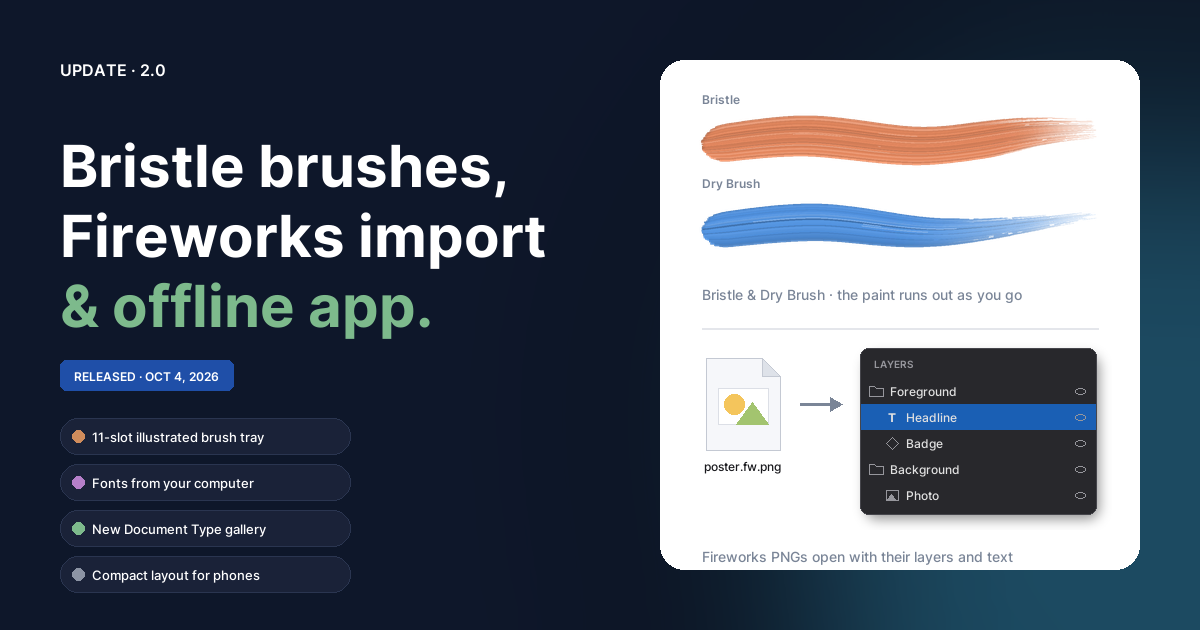
Two new styles in the Paint tool's Style list, the toolbar's Paint flyout, and the brush tray. Both paint with a fan of individual bristles: streaks along the stroke, a little colour variation between bristles, a rounded touchdown, and a taper where you lift.
- Dynamics shows Load, Bristles, and Variation for these styles in place of Hard. Opacity, Flow, Smooth, and Pressure work as usual.
- Paint runs out by distance. Every stroke starts fully loaded. Bristle lasts a long way; Dry Brush starts patchy, with thinner bristles so the paper shows between them, and breaks up quickly. Light pressure dries either one faster.
- Flow applies to the whole stroke, so a stroke that crosses itself doesn't build up darker where it overlaps.
- Erasing (
0, the Erase box, or the toolbar eraser) on Bristle or Dry Brush erases with its bristles, and a dry brush's eraser runs dry like its paint. The other styles keep the soft round eraser. An eraser saved to the tray remembers which tip it uses; Eraser 50% stays round. - Pen tilt. Leaning a stylus more than about 60° from upright widens the fan, up to 1.6× when it's nearly flat. Bristle widths don't change, so a dry brush opens up gaps while a loaded one stays solid. Mice, fingers, and upright pens are unaffected.
- Symmetry. Mirrored copies (the mirror modes, Mandala, Circle, and the single-arm Spiral's mirror) lay the bristles out as a true mirror image, and a single tap's footprint turns with each copy.
- Speed never changes the result. Every pointer sample is drawn. If the brush falls behind on a slow device, the live preview lowers its detail and the stroke is re-rendered at full quality when you lift.
Every existing brush paints exactly as it did before.
Faster painting underneath
- Painting now refreshes only the part of the bitmap that changed, once per frame, instead of the whole bitmap for every dab.
- Each symmetry copy gets its own small refresh area rather than one box spanning all of them. With six-way radial symmetry on a 4000 × 3000 bitmap, brush work per frame fell from 17.9 ms to 3.6 ms.
- The marching ants around a selection are traced once when the selection changes, not every frame. Painting inside a large selection went from 83 ms frames (90th percentile) to a steady 16.7 ms.
Brush tray
- Drawn as real tools. Brushes, pens, markers, a crayon, an airbrush, a nib, and erasers, with tips in the current paint colour. The selected brush grows with a glow behind it. Palette colours render as glossy paint dollops in round wells.
- 11 slots. Slots 1–8 are unchanged (Soft, Hard, Detail, Fine Marker,
Thick Marker, Sketch, Airbrush, Calligraphy), then Bristle
(
Shift+9), Dry Brush, and Eraser 50%. Slots 10 and 11 are click-only for now.Shift+0joins0as the erase toggle. - Your saved tray carries over. If slot 9 held the default eraser, it
moves to slot 11. If you'd put your own brush in slot 9, it stays there
with
Shift+9, and Bristle and Dry Brush become slots 10 and 11. - Slot menu. Right-click a slot for Save Current Brush as Brush N,
Reset Brush N to Default, and Reset All Brushes to Defaults… (which
asks first). Right-click no longer overwrites the slot immediately.
Esccloses the menu without leaving the Paint tool. - The "Colors" and "Brushes (shift)" row labels are gone to make room; each slot's tooltip names its shortcut.
- Erase presets such as Eraser 50% now highlight their own slot instead
of the
0eraser toggle. - Pencil is now Detail. The style was always a thin, hard round, not graphite. Saved presets named "Pencil" are renamed.
- A blank document now starts on the Paint tool with brush 1.
Documents opened with an
?open=link still start on Pointer.
Adobe Fireworks PNG import
Fireworks PNGs (.fw.png, or any PNG carrying a Fireworks document) now
open as layered documents from Open, Open Recent, drag-and-drop, paste,
and Place. Ordinary PNGs open as before.
- Pages open as tabs, one per page.
- Layers keep their names, order, visibility, and lock state. The Web Layer (slices and hotspots) is skipped, and animated documents import their first state.
- Paths keep their bezier handles, solid and gradient fills, strokes, opacity, and live effects (glows, shadows, bevels, blurs).
- Bitmaps keep their exact pixels; groups stay groups.
- Text stays editable. Fonts this computer doesn't have open a Missing Fonts dialog: Maintain appearance keeps the text editable but draws it exactly as Fireworks did until you edit it; Replace with switches to a font you pick. Choices are remembered per font, and installed fonts count as present.
- Fallbacks. Text on a path, perspective text, mixed-style text, textured brush strokes, compound shapes, and effects with no Brushee equivalent come in as Fireworks' own rendered image. A note after the import lists what was converted and why.
Stroke position
Strokes on closed shapes can now sit Inside, Center (the default), or Outside the edge, set from a new menu next to the stroke type in the Properties panel. Selection bounds and SVG export follow the setting. Text, lines, images, bitmaps, and groups keep centred strokes.
Fonts from your computer
- Window ▸ Manage Fonts… has Add font file… for fonts you have as files. They're stored in your browser (IndexedDB) and appear in the font picker alongside your Google Fonts.
- Installed fonts. Chrome, Edge, and other Chromium browsers can list the fonts installed on your system, after asking your permission. If you've said no, allow Local fonts for brushee.app in the browser's site settings. Other browsers can still add font files.
- Nothing is uploaded. Convert to Path and SVG export's text outlines read your local fonts the same way they read Google Fonts.
- The Weight menu now shows weights it didn't list before, such as Black (900) on imported text, instead of labelling them "Light".
New Document Type
- File ▸ New Document Type… (
Ctrl+Alt+N) offers more than 60 sizes across Basic, Social Media, App Stores, Web, Print (300 dpi), and Video & Slides, each with a thumbnail of its shape. - Margin guides come with the types whose platform documents a safe zone (Instagram Story, YouTube channel art, Chrome extension icons, and the print sizes). A checkbox turns them off.
- Transparent backgrounds for stickers, emoji, site icons, logos, Chrome extension icons, and stream overlays.
- My Types. Set a size, background, and guides, then Save as Type… to keep it. The dialog reopens on the category you used last.
- File ▸ New (
Ctrl+N) now creates a document the size of the visible canvas straight away, with no dialog.
Offline and installable
- After the first visit, Brushee stores the whole editor (about 3.6 MB) in the browser and runs with no network. Google Fonts you've used are cached as well; new ones download when you're back online.
- A web app manifest and icons make Brushee installable from the browser's Install or Add to Home Screen option. Installed, it opens in its own window.
- Open tabs check for a new version every hour, and when you come back to the tab or reconnect. When one is ready they show A new version of Brushee is available with a Reload button. Brushee never reloads on its own.
Phones and small screens
- Compact layout on phones (either orientation) and windows narrower than 640 px or shorter than 500 px: the Layers panel floats over the canvas as a sheet, up to 80% of the width, and starts closed.
- On larger windows, the Layers panel starts closed whenever it would take more than a fifth of the width (narrower than 1200 px). Opening and closing it after that is up to you.
- The first blank document matches the canvas area's shape: portrait on an upright phone, wide on a desktop.
- An open menu-bar dropdown now takes
Escbefore anything else.
Also in this release
- Help ▸ Performance Test measures how smoothly Brushee paints on your device. Results stay in your browser unless you tick Share results with the Brushee team; the Privacy Policy lists exactly what a shared result contains.
- Rotated and flipped bitmaps.
- Painting, stamping, and selecting land on the pixels you see.
Rectangle and ellipse marquees stay square to the screen, and
Shift-straight strokes snap to screen angles. - Crop works in the bitmap's own frame, so the crop box turns with the pixels and cropping never resamples them.
- Copying to another app hands over the pixels as you saw them, rotated and flipped, with empty corners trimmed. Pasting back into Brushee keeps the original pixels and their transform.
- Painting, stamping, and selecting land on the pixels you see.
Rectangle and ellipse marquees stay square to the screen, and
- Paste lands in place instead of a few pixels off; Duplicate still nudges its copy. Content copied from a larger document that would land off the canvas is centred instead.
- Gradients on a multi-selection. Editing a gradient applies the change to every selected object, so the whole selection shares one gradient.
- Node drags. Dragging a node on a rotated or flipped path no longer
shifts the rest of the path. One
Ctrl+Znow reverts one node drag (including anAlt-drag join), and clicking a node without moving it no longer leaves an empty undo step. - Several documents at once. Files dropped together, or imports that create several documents, each get their own tab reliably; they could previously collide when opened in the same instant.
- Items in the right-click menu now highlight on hover.