
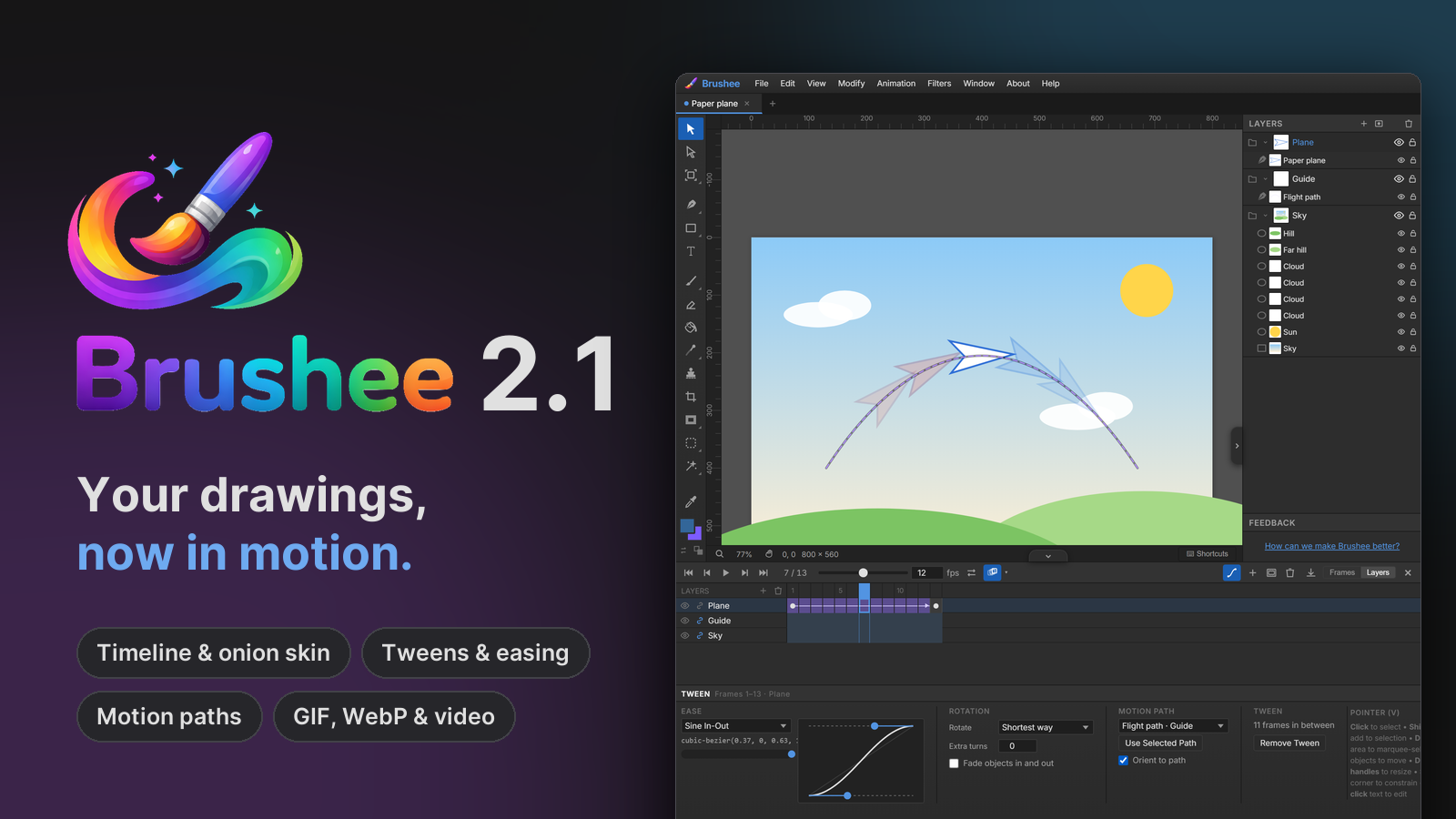
Until now, everything you made in Brushee was a single picture. 2.1 adds a timeline: a document can have frames, and the frames play. Draw every one by hand, or draw two and let Brushee work out the ones in between. Brushes, shapes, text, filters and imported images all work on every frame, the same as they always have.
Frames and the Timeline
Draw something and press Alt+N (Animation ▸ New Frame). Brushee
copies the frame you're on, moves to the copy, and opens the
Timeline between the canvas and the Properties panel. Change the copy
a little, add another, and you're animating frame by frame.
- Onion skin shows the frames on either side faintly underneath the one you're drawing: earlier frames in red, later ones in blue. It makes each drawing easy to place against the last.
- Playback.
Enterplays and stops, and the ping-pong button plays forwards and then back. The fps box sets the speed, and any frame can be held longer with a duration of its own. - Moving around.
,and.step through the frames. Drag a thumbnail to move a frame,Shift-click to select a run, and right-click for copy, paste, reverse and the rest.
Everything lives in the new Animation menu, between Modify and Filters.
Layers across frames
Switch the Timeline to Layers and you get layers down the side and frames across, with a dot for every keyframe. One click on a layer's link button makes it the same in every frame, so a background only has to be drawn once.
You can add, rename, duplicate and delete layers right there in the
Timeline. A new layer holds what you draw on it all the way through. To
change it partway, click a later frame in its row and press Alt+K: that
frame gets a copy of its own to move or redraw.
Tweens
You don't have to draw every frame of a movement. Put a ball on one keyframe and move it on another, then click the curve button on the Timeline. Brushee fills in the frames between, and the ball glides from one place to the other.
A tween can move, resize and turn things, and blend their opacity, colours, gradients, stroke width, corners and filter settings. Click a tween's violet span in the Timeline and its settings appear in the Properties panel:
- Ease makes the motion speed up, slow down, overshoot, spring or bounce. There are 25 presets, from Sine to Elastic and Bounce, or you can drag the handles on the curve to make your own. A dot underneath plays the ease as you change it.
- Rotate picks which way things turn, and Extra turns adds whole spins.
- Fade objects in and out fades things that are only on one of the two keyframes, so they don't just pop.
Need to change course halfway? Go to a frame in the middle and move the ball. That frame becomes a keyframe of its own, and the tween now passes through it.
Along a path
For a curved route, draw one. Put the path on a layer of its own, select it, and click Use Selected Path in the tween's settings. The path becomes a dashed violet motion guide: you see it while you work, but it's left out of every export. The ball follows it from one keyframe to the next, and the frames update whenever you edit the path. Orient to path turns the ball as the path turns, so a car follows the road and a plane banks through a loop.
Between shapes
Tweens change shapes, too. Reshape a path on the second keyframe, or put a circle where the square was, or a star with more points, and the frames between morph smoothly from one to the other.
Colour effects
Any object can now take a Flash-style colour effect, from the new Color Effect section in the Properties panel:
- Brightness darkens or lightens it.
- Tint washes it with a colour.
- Alpha fades it.
- Advanced sets each colour channel's multiplier and offset, for inverting, swapping channels and other tricks.
They work on shapes, text, bitmaps and whole groups, and they cover the object's filters as well, so a tinted object's drop shadow is tinted too. Tweens blend between them, so a sprite can flash white when it's hit or fade into the background. SVG export keeps them.
Export animations, eight ways
Animation ▸ Export Animation… turns your frames into a file:
- Animated GIF plays everywhere. Tick Dither for smoother gradients.
- Animated PNG keeps full colour and soft transparency.
- Animated WebP, AVIF and JPEG XL make smaller files still.
- MP4 and WebM video, for social sites and video editors, where your browser can encode them.
- A PNG sequence, one image per frame in a ZIP.
Choose the frames, the size, how many times it loops, and whether the background is transparent. The preview plays the actual file you'll get, with its size. As always, everything is encoded on your own machine and nothing is uploaded.
Open animated files
Open an animated GIF, PNG, WebP or AVIF and every frame comes in as a frame of its own, with its timing and loop count, so you can retouch a GIF frame by frame and export it again. Drop one onto a document you're working on and Brushee asks whether to add its frames to your timeline on a new layer, or to place just the first frame.
Learn more
The new guide, Animation and the Timeline, walks through your first frames, tweens, motion paths and exporting, step by step. In the app, Help has topics on animation and on colour effects. The full list of changes is in 2.1, and every release lands in the Atom feed and on the Updates page.
Brushee is still free, still needs no account, and still keeps your work on your own machine. Thank you for the feedback that keeps shaping it.