

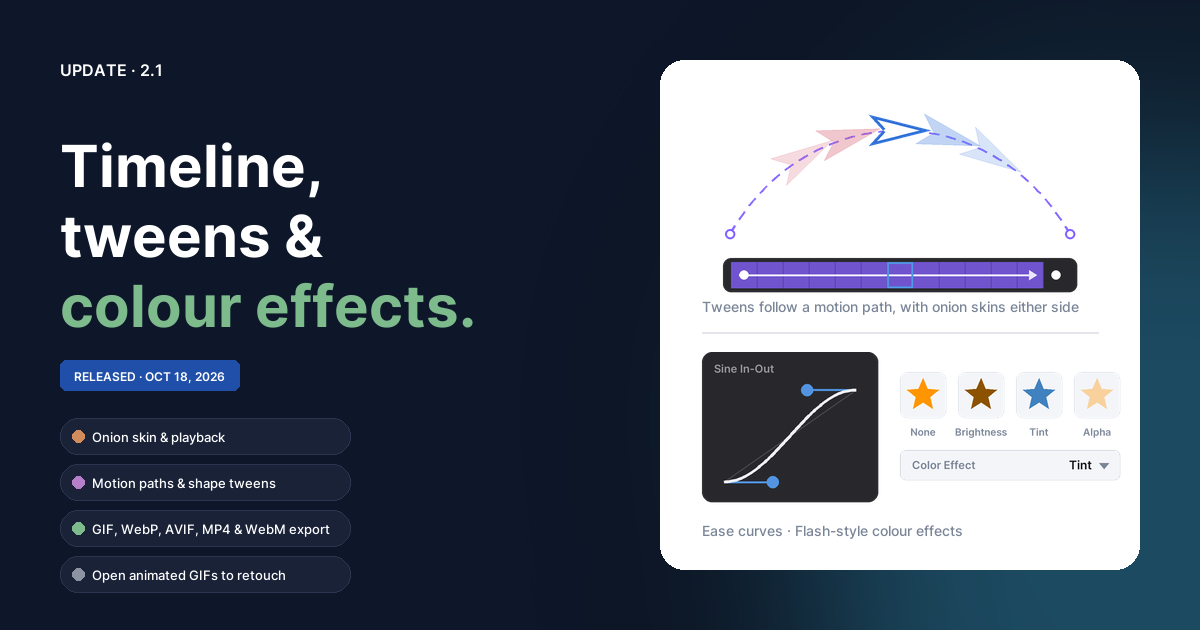
Everything since 2.0. The 2.1 announcement has the overview, and the animation guide walks through it step by step; this is the detail.
The Timeline
- The Timeline sits between the canvas and the Properties panel. It opens by itself once a document has two frames, and Window ▸ Toggle Timeline shows or hides it.
- The bar has first, previous, play, next and last; a frame counter and slider; fps; ping-pong; onion skin; New Frame, New Blank Frame and Delete Frame; Export Animation; and the switch between the Frames and Layers views.
- Frames view. Click a thumbnail to go to that frame,
Shift-click to select a run, drag to move a frame, double-click to give it its own duration, and right-click for the frame commands. - Layers view. Layers down the side, frames across. A filled dot is a keyframe with something on it, a hollow dot an empty one, a grey bar a held frame, and a long blue bar a layer that's the same in every frame. Each layer has an eye and a link button. The current frame is a faint column, and the layer you're on has its cell outlined.
- Layers in the Timeline. The + adds a layer and the bin deletes the current one. Double-click a name to rename it, or right-click for New, Duplicate, Rename and Delete Layer and the link setting. Each is one undo step.
- On phones the Timeline is a slim strip with the Frames view.
Frame commands
The new Animation menu (between Modify and Filters) and the Timeline's right-click menu share one list, and each command is one undo step:
- New Frame (
Alt+N) copies the current frame; New Blank Frame (Alt+Shift+N) starts one empty; Insert Held Frame adds a frame that holds the keyframe before it; Delete Frame. - Copy Frames, Paste Frames and Reverse Frames work on the selected run.
- Move Frame Left and Right, and Frame Duration.
- Convert to Keyframe (
Alt+K) gives a held frame its own copy to change. When it can't, it says why. Clear Keyframe makes a frame hold the one before it again. - Layer Same in Every Frame, Onion Skin, and the tween commands below.
- Export Animation… is here and in the File menu, and is off until the document has frames. On a document with frames, File ▸ Export As… reads Export Frame As…, because it saves the current frame.
Shortcuts, playback and onion skin
,and.step back and forward;Shift+,andShift+.jump to the first and last frame. They work on every keyboard layout, and on macOS.Enterplays and stops, whenever the focus isn't in a field or a dialog. Playback follows each frame's duration and plays the selected run if there is one.Escapeor a click on the canvas stops it on the frame that was showing; any edit stops it too.- Onion skin draws earlier frames tinted red and later ones blue under the current frame. Its arrow sets how many frames show, how faint they are, and whether every layer shows or only the current one.
Layers and keyframes
- A new layer in an animation starts as one empty keyframe held over
every frame, so what you draw on it shows all the way through.
Alt+Kon a later frame gives that frame a copy to change. - Same in every frame. The link button makes a layer show the same thing on every frame. Clicking it again gives each frame its own copy of what it shows. Making a layer shared keeps the current frame's content, and asks first if other frames have content of their own.
- Editing a held frame edits the keyframe it holds, as in Flash.
- Changing frame finishes a text edit first.
- Every frame counts in autosave and recovery, Trim Canvas, Trim to Selection and Duplicate Layer.
- Files.
.brusheefiles keep every frame. Documents without frames save exactly as before. Brushee 2.0 opens an animation as the frame that was showing when it was saved, and keeps the other frames if it saves it again.
Tweens
- Create Tween (the curve button on the Timeline, or Animation ▸
Create Tween) on a keyframe tweens to the layer's next keyframe.
- If the next keyframe is on the very next frame, Brushee asks how many frames to put between them; the default is one second's worth.
- Empty keyframes right after it are skipped: the tween goes to the next keyframe with something on it, and the empty ones are removed in the same undo step.
- A tween shows in the Layers view as a violet span with an arrow, and its tooltip names the ease.
- What moves and blends. Position, size and rotation (the shortest way round, or clockwise or counter-clockwise with extra turns). Also opacity, solid fills and strokes, gradients with the same number of stops, stroke width, corner radii, smart-shape settings, text size and spacing, filter settings (when both keyframes have the same filters), and colour effects. Everything else switches at the second keyframe.
- Matching. Each object tweens to its own copy on the other keyframe. If each keyframe has exactly one object left over, those two tween to each other anyway, as in Flash.
- Editing an in-between. Move or repaint something on a frame inside a tween and that frame becomes a keyframe, with the tween passing through it. Undo brings the tween back.
- Frame commands across a tween. Insert Held Frame inside a tween makes it a frame longer. New Frame, Convert to Keyframe, Copy Frames, Move and Reverse take in-between frames as they look.
- Remove Tween in the menus and in the tween's settings.
Tween settings
Click a tween's span in the Layers view, or use the curve button,
Animation ▸ Tween Settings, or a double-click on the span, and the
Properties panel shows the tween in place of the selection or the
document. Its header names the span ("Frames 1–6 · Layer 1"). Clicking
another frame, pressing on the canvas, Escape, or selecting other
objects puts the panel back.
- Ease: 25 presets (Linear, and In, Out and In-Out versions of Sine, Quad, Cubic, Quart, Expo, Back, Elastic and Bounce), Steps with a step count, or your own curve. Drag the curve's handles to shape it (one undo step per drag). A dot plays the ease, and the ease is shown as CSS.
- Rotation: Rotate (Shortest way, Clockwise or Counter-clockwise), Extra turns, and Fade objects in and out for objects on only one of the two keyframes.
- Motion Path: the path menu, Use Selected Path and Orient to path.
- Tween: how many frames are in between, and Remove Tween.
Motion paths
- Use Selected Path marks the selected path as the tween's motion guide (one undo step). The Motion path menu lists the guides on the current frame, and a Motion guide checkbox on any path turns it on or off.
- Objects travel along the guide between the two keyframes, eased, and land exactly on both. Edit the guide and the frames follow. On a closed guide, an object goes the shorter way round, or once round if it starts and ends at the same place.
- Orient to path turns objects with the guide's direction, keeping each keyframe's own angle to it.
- Guides draw as a dashed violet line while you edit, and only a click near the line selects one. They're left out of exports, SVG, layered PSD, printing, thumbnails, onion skins, playback and the trim bounds.
- A path inside a group can't be a guide, and only a guide's first subpath is followed.
Shape tweens
- Two paths that differ, two shapes of different kinds (a rectangle and an ellipse), a polygon with another number of sides, or a star with another number of points morph from one to the other. There's no setting: matched shapes that differ always morph.
- Paths with the same nodes blend node by node. Others are matched by length and lined up so the nodes move as little as possible, so a redrawn square doesn't twist on its way.
- Flipped objects and lines don't morph, and arc nodes morph only into a path built the same way.
Colour effects
- A Color Effect section after Appearance in the Properties panel,
with Flash's styles: None, Brightness, Tint, Advanced
and Alpha.
- Brightness, Tint and Alpha have a slider and a percentage. Tint's swatch opens the colour picker, and it starts at 50% of the toolbar fill colour.
- Advanced is a grid of red, green, blue and alpha, each a percentage and an offset. Switching to it from another style starts from that style's numbers.
- A drag, a typed value or a colour pick is one undo step. With several objects selected the section sets all of them, and values that differ show as Mixed.
- Effects work on shapes, text, bitmaps and groups (covering every child), and include the object's filters, so a tinted drop shadow is tinted.
- Every export includes them. SVG export writes an
feColorMatrixfilter, or plain opacity for Alpha. Convert to Path and Combine keep the effect; Flatten bakes it in. - A Color Effects topic in Help.
Animated export
Animation ▸ Export Animation… (also in the File menu and on the Timeline) writes:
- Animated GIF, with Dither for smoother gradients.
- Animated PNG (APNG), full colour with soft transparency.
- Animated WebP, AVIF and JPEG XL, each with a 0–100 quality slider. 100 is lossless for AVIF and JPEG XL, and for WebP in Chrome and Edge.
- MP4 and WebM video, with a quality setting from Low to Very high and Play the frames (once to ten times) to repeat a short loop. Video can't be transparent, so the background is filled in.
- A PNG sequence as a ZIP.
Pick all frames or the selected run, the size, the loop count (saved with the document), a transparent background, and Pixel art scaling for crisp pixels.
- Formats appear only where your browser can write them: WebP everywhere but Safari, and video where the browser has a suitable encoder at the chosen size. A size it can't encode shows a warning.
- The preview plays the real file, with its size. Where the browser can't show animated JPEG XL, the preview plays an animated PNG of the same frames and says so.
- WebP, AVIF, JPEG XL and video are encoded a frame at a time, so a long video doesn't hold every frame in memory. Closing the dialog cancels an export.
- Everything is encoded in your browser. Nothing is uploaded.
Animated import
- File ▸ Open of an animated GIF, PNG, WebP or AVIF makes a document with one frame per image frame. The fps comes from the most common frame duration, frames that differ keep their own, and the loop count comes along. Each frame is a bitmap named Frame 1, Frame 2 and so on. Files with a single frame open as images, as before.
- Place… and drops onto the canvas ask: Add as Frames puts the frames on a new layer, from the current frame on, adding frames at the end if needed; Place First Frame places a still image. Either way it's one undo step. A document without frames takes the file's timing; one with frames keeps its own.
- Animated AVIF opens as frames in Chrome, Edge and desktop Firefox, and as a still image elsewhere.
.avifand.apngfiles are now listed in the Open and Place pickers.
Fixes
- Undo in the Properties panel. Undo after dragging a slider or typing a number now goes back to the value before the edit. Before, it often brought back the new value. This affected Opacity, X, Y, W, H, rotation, stroke width, corners and the shape settings. A slider drag is now one undo step instead of two, and clearing a number field while typing no longer leaves a broken value.
- Sharper semi-transparent objects. Objects below 100% opacity with both a fill and a stroke or with filters, and semi-transparent groups, were drawn slightly blurred at high zoom, on high-density screens, and in exports above 1×. They're now as sharp as everything else.
- Quick Export PNG now follows the Layers panel's order, nested layers and layer opacity.
- Escape now closes the Help, About, Recovery and Missing Fonts dialogs. It cancels a layer rename in the Layers panel instead of keeping the typed name.
- Short notes from the app, such as Copied image to clipboard, now show on screen. They were being lost.
Also since 2.0
These arrived in the 2.0 updates:
- AVIF and JPEG XL export of still images, in the Export dialog and Batch Convert, with a transparent background option and a quality slider (100% is lossless).
- Smoother brush strokes, with less stair-stepping along curves.
- Faster painting on big bitmaps. Their pixels are saved in the background after a stroke instead of holding up the next one.
- Bitmap pixels no longer go blank after an undo or a save following
a Scale tool warp, or a Retouch or Stamp stroke cut short by
SpaceorCtrl. - The Recovery dialog has Discard All when there's more than one document to recover.