

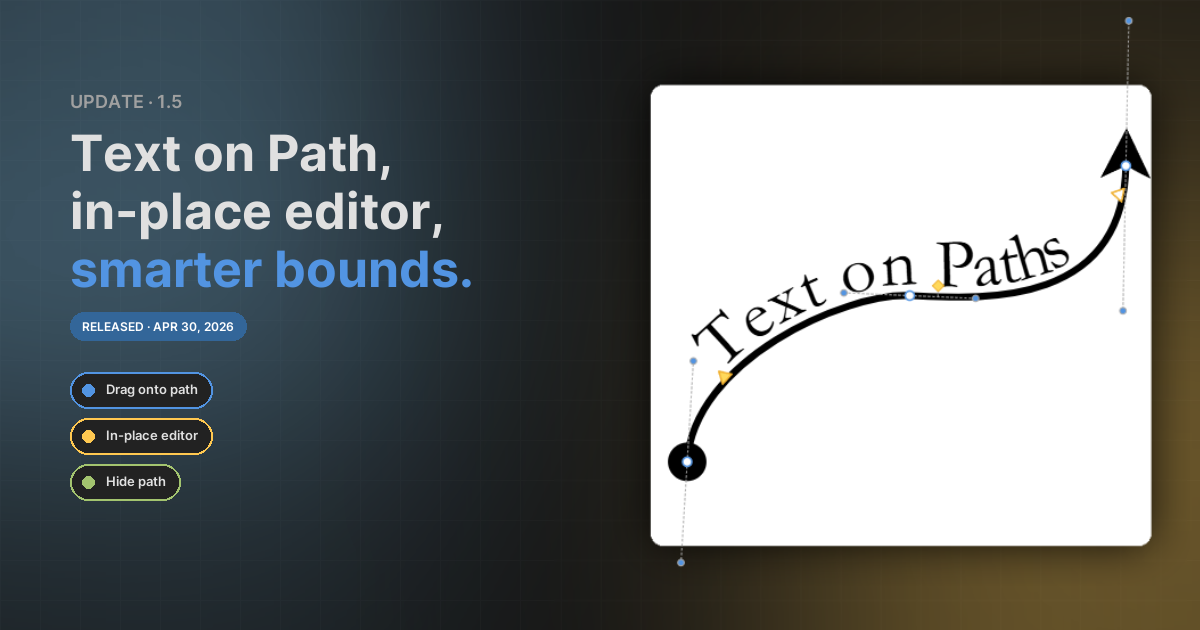
Text on Path
Any bezier path can now carry a string of text that flows along the curve. Four ways to attach text:
- The new Text on Path subtool under the Pen — draw a path and the inline editor opens immediately so you can type.
- Right-click a path → Add Text to Path — converts an existing path in place.
- Drag a text object onto a path — hover the cursor over the stroke for 250 ms; a preview shows exactly where the text will land. The preview anchor follows the cursor so you can scrub along the path before releasing. The dragged text object is consumed and the path inherits its font, fill, and content.
- Right-click a text-path → Remove Text from Path — pops the text back out as a standalone text box, sized to the start↔end handle distance so wrapping roughly matches what was on the path.
Style handles
With the path selected, three yellow handles appear on the curve. The filled triangle is the start, the hollow triangle is the end, and the diamond is the baseline. Drag the triangles along the path to trim where the text starts and stops; drag the diamond perpendicular to the path to push the text above or below the centerline. The triangle apex always points toward the side the text sits on, so the indicator flips automatically when you change baseline or flip orientation.
Properties
A new Text on Path section in the Properties panel exposes:
- Reverse direction — read the text end → start.
- Flip orientation — mirror the text to the other side of the path (useful when text sits inside a closed shape).
- Baseline — slider + numeric input mirroring the on-canvas handle.
- Hide Path — suppress the path's own fill / stroke while keeping the text. The path still appears as a dashed reference while you're editing.
The standard text controls (font family, size, weight, alignment, line height, letter / word spacing, B / I / U) all bind directly to the text-on-path payload.
In-place text editor
The text editor is rewritten. Double-click any text — on a path or on its own — to edit it. The text continues to render on the canvas exactly where it always was; there's no longer a floating textarea that drifts a pixel or two when you click in. A blinking caret marks your insertion point, and for text-on-path the caret banks with the local tangent of the curve.
Selection
- Mouse drag to select a range.
- Shift + click to extend the selection from the existing anchor.
- Shift + arrow / Home / End for keyboard selection.
- Ctrl / ⌘ + A to select all.
- Typing replaces the selection; Backspace / Delete delete it.
The selection highlights in canvas blue — per-glyph rotated rectangles for text-on-path so the band follows the curve, per-line rectangles for normal text. Highlights stay visible while the caret blinks off so you can always see what's selected.
Smarter selection bounds
Selection frame, resize handles, rotation halo, and rotation hit-test now expand to wrap text-on-path glyphs — moving / resizing / rotating the path keeps everything together, and you can grab the corner handle even if it's positioned around the text rather than the path bbox.
Same expansion applies to filters: drop shadow, outer glow, and inner shadow / glow / bevel offscreens are sized from the effective bounds, so high baseline offsets no longer clip the filter against the path bbox.
Click on text to edit
Clicking on the text glyphs (not just inside the path bbox) now counts as clicking on the path — so you can double-click visible characters to edit, even when the text extends well past the path's own bounding box.
Misc
- Default handle inset — new text-paths start with handles at 5% and 95% along the curve so they're immediately grabbable.
- Path moves carry the text — translating, resizing, or scaling a path now invalidates the cached arc-length samples so the text re-flows along the new geometry.
- Outer glow respects Hide Path — the dilation stroke that traced the path shape is skipped when the path is hidden, so the glow no longer leaks along an invisible curve.
- Rotation-aware caret — the caret and selection highlight track the visible text on rotated paths; clicks land on the right glyph.
- Pen → flyout — the Pen tool now has a flyout containing the Text on Path subtool. Click the small chevron below the Pen icon to switch.
See the Text on Path guide for the full walk-through.