
Everything since 2.1.3. The 2.2 announcement has the overview and the Pixel Art guide the walkthrough; this is the detail.
Pixel-art documents
- File ▸ New Document Type… ▸ Pixel Art & Games: Sprite 16, 32, 48, 64, 128 and 256 (transparent); Game Boy Screen 160 × 144 with the Game Boy's four greens and 8 px tiles; SNES Screen 256 × 224 with 16 px tiles; Widescreen 320 × 180 and 480 × 270; Tilesets of 8, 16 and 32 px tiles.
- A Pixel art box in the dialog makes any size a pixel-art document. It follows the type you pick, and Save as Type keeps it.
- New pixel-art documents start with an 8 px grid, the type's tile grid and the PICO-8 palette (Game Boy: its own greens).
- Properties ▸ Document has Pixel art for any document, and on pixel art Grid and Tile (width × height, 0 for none). Each change is an undo step, and all of it is saved with the document.
The view
- Pixels are hard-edged at every zoom, on screen and when resized bitmaps are exported.
- Whole-number zoom:
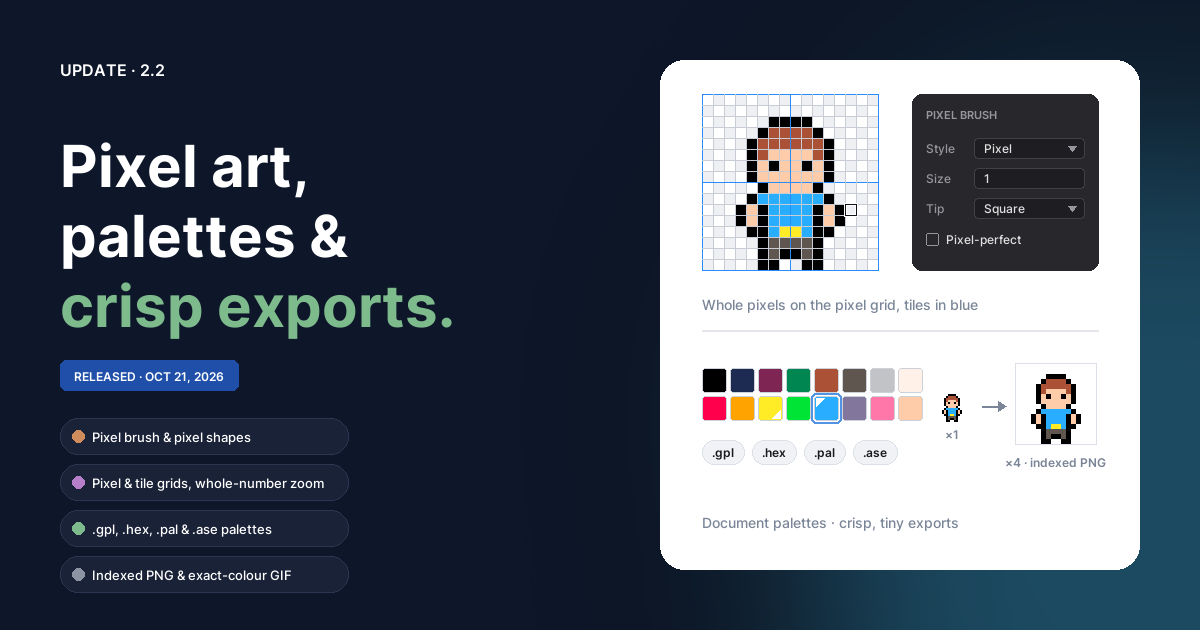
Ctrl+=,Ctrl+-, View ▸ Zoom In / Out and the mouse wheel (one step per notch) go 100%, 200%, 300%, 400%, 600%, 800%, 1200%, 1600% and on to 6400%, halving below 100%. Fit picks the largest whole zoom that fits, so small sprites open big. - From 800% a fine pixel grid outlines every pixel, and a blue tile grid marks the tiles, both over the artwork and one screen pixel wide at any zoom. View ▸ Toggle Pixel Grid and Toggle Tile Grid hide them. Snap to Grid snaps to the tile grid as well.
- The transparency checkerboard keeps to about 16 screen pixels, so it doesn't look like a tile grid when you're zoomed in.
- View ▸ Zoom goes up to 1600% and 3200% in every document.
The Pixel brush
- A Pixel style in the Paint flyout and the Style list: whole pixels, 1 to 64 wide, Square or Round tip, with every pixel between pointer positions filled. Opacity applies; Flow, smoothing and pressure don't, so the Dynamics section shows just Opacity.
- Pixel-perfect (off unless you tick it) leaves out the extra pixel at each corner of a 1-pixel line. A corner pixel shows as you reach it and goes once your next pixel shows it was a corner.
- The Eraser keeps the Pixel tip, and brush presets save the tip and the Pixel-perfect setting.
- The cursor outlines the pixels the brush will cover, symmetry echoes included. With symmetry on, the frame's centre stays on a pixel edge or centre, so mirrored strokes land on mirrored pixels.
- Selections and stencils cut pixels fully in or out, never half.
- Paint and the Eraser switch to Pixel the first time you open a pixel-art document. Pick another style and it stays picked.
Pixel shapes and tools
- In a pixel-art document Line, Rectangle and Ellipse draw
pixels into the bitmap, in the fill colour: Bresenham lines, and
symmetric ellipses at every size.
Shiftmakes 45° lines, squares and circles;Altdraws from the centre. Size, Tip and Filled are in the Properties panel. They draw into a layer mask you're editing, and selections and stencils clip them. The tool stays active for the next shape. - Paint Bucket: a click on open canvas fills out to the page's edges.
- Moves take whole pixels. Turning with the Pointer goes in quarter turns, and a quarter turn — there or from Modify ▸ Transform — turns a bitmap's pixels, keeping it on the pixel grid.
- The Scale tool's skew, stretch and trapezoid keep hard pixels, and Document Size starts on Nearest neighbor.
The Palette panel
- Under Layers while a pixel-art document is open: click a swatch for the fill colour, right-click for the stroke colour, double-click to edit it, drag to reorder. + adds the fill colour, − removes the selected swatch. Marks show which swatches are the fill and stroke colours, and the header counts the colours the current frame uses.
- ⋯ ▸ Starter Palette: PICO-8, Sweetie 16, DawnBringer 16, Game Boy, CGA and 1-bit. From Image makes a palette of the colours you've used, most used first.
- Import… and Export: GIMP
.gpl,.hexlists (Lospec's download format), JASC.paland Adobe.aseswatches (RGB, CMYK, Lab and grey). Aseprite sprites share the.aseextension; Brushee tells them apart and says so. - Replace Colour turns the fill colour into the stroke colour. Reduce to Palette turns every pixel into its nearest palette colour, plain or Dithered. Both change every bitmap, hidden or not, on every animation frame, as one undo step.
Export
- Indexed PNG. A PNG with 256 colours or fewer is written with a palette, at 1, 2, 4 or 8 bits per pixel, with exact transparency: the same pixels in a much smaller file. This applies to every document.
- Exact GIF colours. A GIF with 256 colours or fewer, still or animated, uses exactly those colours instead of an approximation.
- Crisp enlargements. With Pixel art ticked, Export As… and Export Animation… draw each document pixel once and enlarge it as a hard block, so vector shapes and text come out pixel-sharp too. Both tick Pixel art for pixel-art documents. Export As… has 800% and 1600% scale presets; Export Animation… offers 800% and 1600% for pixel art.
Every document
- Hard pixels from 400%. Zoomed to 400% or more, the canvas shows a bitmap's real pixels instead of smoothing them, as graphics programs do. A large picture shrunk in the document stays smooth until you zoom in past its real pixel size.
- Paint Bucket: a Contiguous box (off fills every pixel of the clicked colour), and a pixel selection keeps the fill inside it.
- View ▸ Toggle Grid draws crisp lines, uses the document's own grid size, and stays out of the way when you zoom far out.
- A symmetry frame left off the page by another document comes back to the middle of this one.
Also since 2.1
These arrived in the 2.1 updates; 2.1.3 has the detail:
- Animated SVG export, and SVG export that keeps flips, gradients, blend modes, layer opacity and clip masks.
- The Document Size dialog: Canvas Size and Image Size.
- The eyedropper loupe.