

Everything since 2.2. The 2.2.1 announcement has the overview, and the Pixel Art and Animation guides the walkthrough; this is the detail.
Tags
- Animation ▸ New Tag… (also on the frames' right-click menu) names the selected frames, or the current one. A tag has a name, a direction (Forward, Reverse, Ping-pong or Ping-pong Reverse, as in Aseprite), how many times it plays (0 for forever) and a colour.
- Tags are coloured bars above the frames, in both Timeline views, and overlapping tags stack. Click a tag to select its frames (and go to its first frame, unless you're already on one of them), double-click it or use Tag Properties… to change it, and right-click it for Play Tag, Tag Properties… and Remove Tag.
- With exactly a tag's frames selected,
Enterplays them the tag's way, as many times as it says, and stops on the last frame shown. - Tags stay on their frames:
- a frame added, pasted or held inside a tag, or just after its last frame, joins it; frames added before it move it along;
- deleting frames shrinks a tag, and a tag with none of its frames left goes;
- a moved frame stays in a tag if it lands among or next to the tag's other frames;
- Reverse Frames turns tags inside the reversed run round.
- Every tag change is one undo step. Tags are saved with the document, and older versions of Brushee keep them.
Export Animation
- Frames can be all, the selection, or any tag. A selection that is exactly a tag starts on that tag. The animated formats play a tag in its direction, once per loop.
- Sprite sheet (PNG + JSON):
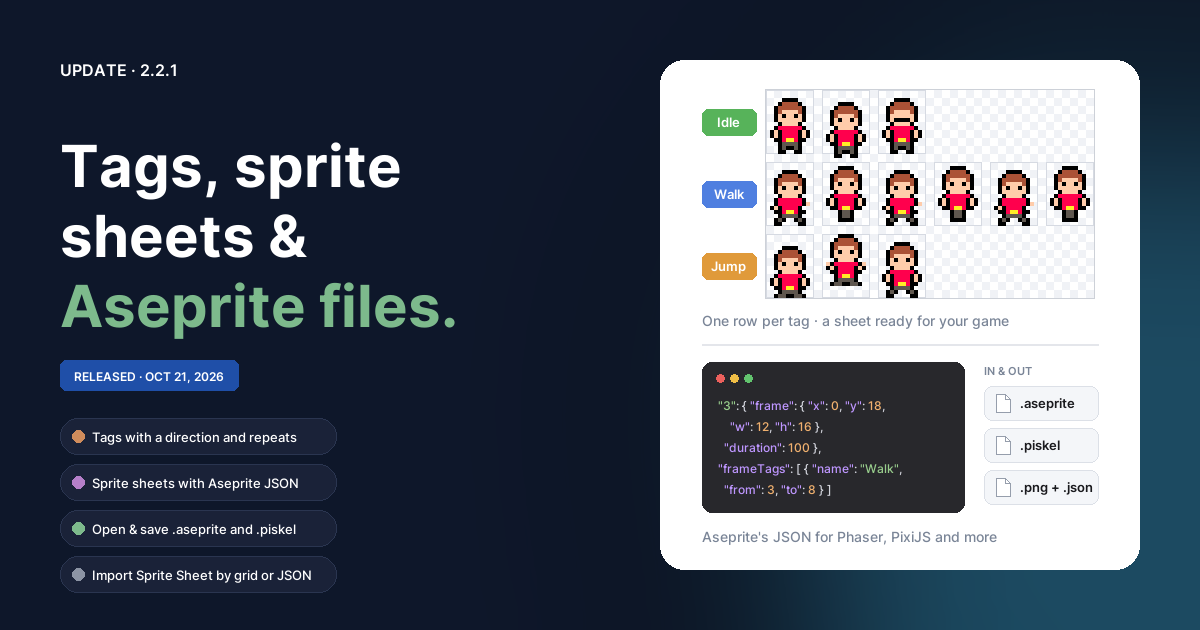
- layouts: a horizontal or vertical strip, a grid (by columns, or about square), one row per tag (frames in no tag on a last row), or packed tightly;
- a border, spacing between frames and padding round each; Trim crops each frame to its pixels and records where it came from; Extrude repeats each frame's edge pixels outward, so filtering in the engine doesn't bleed;
- identical frames share pixels on the sheet, each keeping its own trim offset;
- one sheet, one per tag, or one per visible top-level layer;
- JSON in Aseprite's format, as a hash or an array, or none. Frames are
named "0", "1", … as Phaser's
createFromAsepriteexpects, with their place, trim, size and duration;metahas the tags (with their direction and repeats), the layers, the sheet size and scale. - One PNG saves as a PNG, anything more as a ZIP. Sheets with 256 colours or fewer are indexed PNGs. A sheet longer than 16384 pixels is refused.
- Aseprite sprite (
.aseprite):- layers keep their opacity, blend mode and visibility, and a layer with layers inside it becomes a group;
- each layer's frame is a cel cropped to its pixels, and a frame that looks like the one before it is a linked cel, so held frames and layers that are the same in every frame stay small;
- frame durations, tags with their colours, and the document palette (or else the most used colours); the tile size becomes the grid; the page colour goes on a Background layer unless the background is transparent;
- shapes and text are drawn into pixels.
- Piskel sprite (
.piskel): one layer per visible top-level layer, with its opacity, and the layers inside it drawn in. Piskel has no blend modes, nested layers, tags or per-frame durations, so frames play at the document's frame rate and hidden layers are left out; the dialog says so. - The preview shows a sprite sheet with its size; an Aseprite or Piskel file previews as an animated PNG of the same frames.
Opening Aseprite and Piskel files
File ▸ Open, Open Recent, Place… and drops open .aseprite,
.ase and .piskel files as new pixel-art documents.
- Aseprite: RGBA, grayscale and indexed sprites (indexed and grayscale open in full colour, and the transparent colour is see-through except on the background layer). Groups become layers with layers inside them; visibility, opacity and blend modes come along (Subtract and Divide open as Normal); reference layers open hidden. A cel linked to the frame before becomes a held frame, and one linked further back a copy. Tilemap layers open as the pixels their tiles make, flips included. Durations, tags and their colours, and the palette come along, and the tileset's tile size (or a grid that isn't Aseprite's default) becomes the tile grid.
- Piskel: current and older files; each frame of each layer is a keyframe, and the colours used become the palette.
- An Adobe swatch file shares the
.aseextension. Brushee tells them apart and points you to the Palette panel's ⋯ menu for swatches.
Import Sprite Sheet
File ▸ Import Sprite Sheet… (also in the Animation menu) turns a sheet into frames.
- Pick the sheet's PNG, and its JSON too if it has one: Aseprite's or TexturePacker's (rotated frames are turned back). The JSON's frames, trim offsets, durations and tags are used.
- Without JSON, set the cell size or the columns and rows, an offset to the first cell and the spacing between cells. Empty cells are skipped unless you untick it. The preview outlines and numbers each frame.
- The frames open as a new document (a pixel-art one for cells up to 256 pixels, with the sheet's colours as its palette), or go onto a new layer in this one from the current frame on.